
How to Convert PDF to Word Free Online
Learn three ways to convert PDF to Word free: offline in Microsoft Word, via Google Docs with OCR, or using trusted online tools.

Three reliable free methods let you convert any PDF to an editable Word document right now. You can (1) open the PDF directly in Microsoft Word (no upload, no internet), (2) upload it to Google Drive and open with Google Docs (free OCR included for scanned files), or (3) use a reputable browser-based converter such as iLovePDF, Smallpdf, or PDF24. The right choice depends on two things: whether your PDF is native text or a scanned image, and whether it contains sensitive information. Below you will find the step-by-step for every method.
Before you start: what you need and a quick pre-flight check
Before you convert anything, spend 30 seconds on two quick checks. They will save you from picking the wrong method, getting a blank document, or sending a confidential file to a stranger's server.
Check whether your PDF is native (text-based) or scanned (image-based)
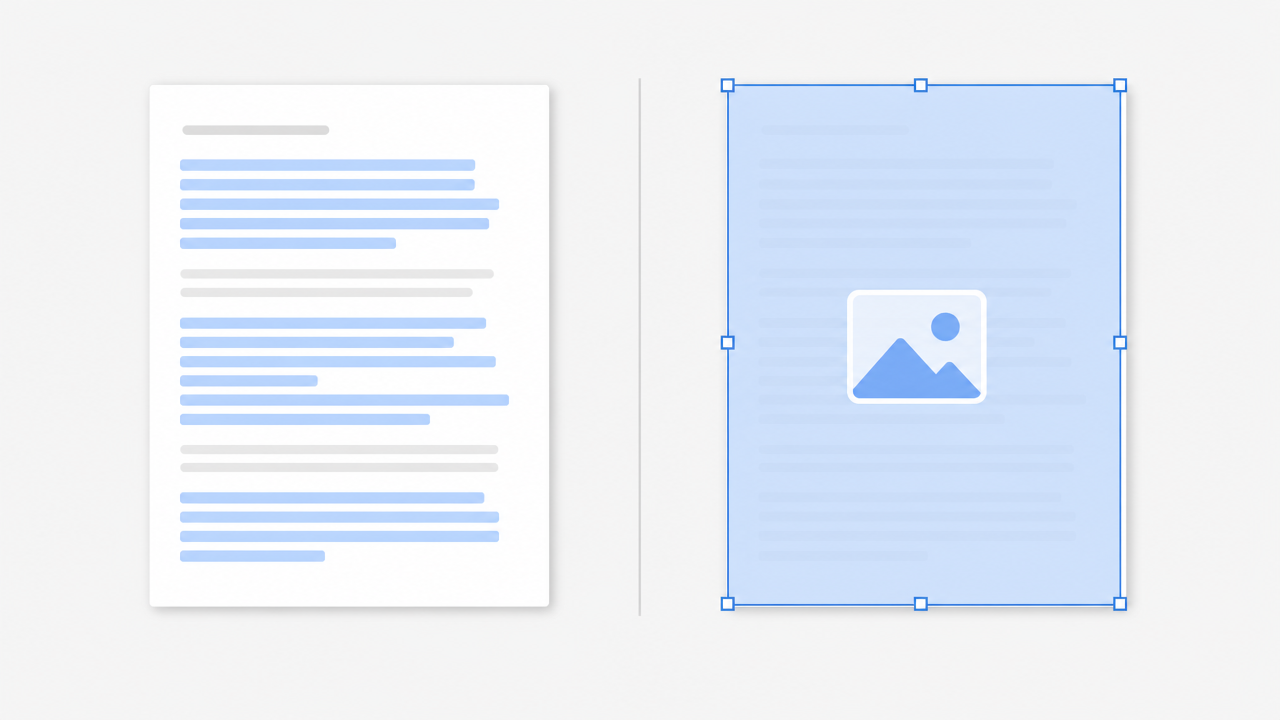
Open your PDF in any reader and try to click-and-drag to highlight a word. If individual words highlight with a blue selection box and you can copy-paste them into another app, the PDF is native (text-based). If the entire page selects as one big image, or nothing highlights at all, the PDF is scanned (image-based) and you will need a method that includes OCR (Optical Character Recognition).
This single test determines which methods will work. Microsoft Word's built-in converter, for example, cannot OCR a scanned PDF; you would get a document containing only the image, not editable text.
Decide if the content is sensitive
Uploading a tax return, medical record, contract, or financial statement to any online tool means your file travels to, and is processed on, a third-party server. The FBI Denver Field Office warned in March 2025 that cybercriminals run fake free converter sites to scrape uploaded files for Social Security numbers, banking details, and passwords. Experian's identity-theft blog explains the mechanics: some sites install spyware or ransomware through the downloaded output file, while others quietly harvest data from uploads.
Rule of thumb: sensitive content should stay offline (Method 1 or the LibreOffice bonus method). Non-sensitive everyday files are fine for online tools.
Quick decision flowchart: which free method is right for your file?
Use this three-question path to skip straight to the right section:
- Is the content sensitive or confidential? → Yes → Use Method 1 (Microsoft Word, offline) or the LibreOffice bonus method.
- Is the PDF scanned / image-based (needs OCR)? → Yes → Use Method 2 (Google Drive/Docs, free OCR) or an online tool with free OCR on Method 3's comparison table.
- Native text PDF, non-sensitive? → Any method works. Online tools (Method 3) are usually the fastest single-click option.
If you also need to merge, split, or compress PDFs before or after conversion, see our roundup of Free online PDF tools: merge, split, compress, convert (no signup).
Method 1: convert PDF to Word in Microsoft Word (no upload, no internet)
Microsoft Word 2016 and newer (including Word for Microsoft 365) can open and reflow a native PDF into an editable .docx on your own computer. No file ever leaves your machine, making this the safest option for confidential documents.
Step-by-step instructions
- Open Microsoft Word (version 2016 or newer, or Word for Microsoft 365).
- Go to File → Open and browse to your PDF. You can also drag and drop the PDF file directly onto Word's window.
- Word displays a dialog: "Word will now convert your PDF to an editable Word document. This may take a while. The resulting Word document will be optimized to allow you to edit the text, so it might not look exactly like the original PDF…" Click OK.
- Wait for the conversion. Most text-heavy files finish in a few seconds.
- Review the result, then go to File → Save As and choose .docx as the format.
Sources: Microsoft "Edit a PDF" support page; Microsoft "Opening PDFs in Word".
What this method handles well, and where it struggles
Microsoft's own documentation states that the converted document "might not have a perfect page-to-page correspondence" with the original PDF. Text-heavy, single-column PDFs convert best. Tables stored as positioned lines (not true table objects), complex multi-column layouts, and heavily designed pages often break visually.
Word has no built-in OCR on this route. If your PDF is scanned/image-based, Word will import the image but produce no editable text. Use Method 2 or 3 instead.
Best for: text-heavy native PDFs, especially sensitive or confidential files you do not want to upload anywhere.
Method 2: convert PDF to Word using Google Drive and Google Docs (free, with OCR)
Google Docs can convert both native and scanned PDFs to editable text at no cost, applying OCR automatically to image-based files. You need only a free Google account.
Step-by-step instructions
- Go to drive.google.com and sign in with a Google account (free to create).
- Click New → File upload and select your PDF.
- Once the upload finishes, right-click the file in Drive and choose Open with → Google Docs.
- Google Docs converts the PDF. For scanned/image PDFs, OCR runs automatically.
- Review the extracted text. Then go to File → Download → Microsoft Word (.docx).
Source: Google Drive Help — "Convert PDF and photo files to text".
Google Docs OCR limits you should know
Google's own help page lists clear constraints:
- File must be ≤ 2 MB.
- Text should be ≥ 10 px high in the source image.
- The image must be right-side up (rotated or skewed pages reduce accuracy).
- Common fonts are recognized best; decorative or handwritten fonts may fail.
- Lists, tables, columns, and footnotes are "not likely to be detected."
Set realistic expectations: for a clean, single-column scanned letter, results are usually good. For a scanned spreadsheet or multi-column report, expect heavy manual cleanup.
Best for: scanned single-page or short documents, non-sensitive content, users who do not have Microsoft Word installed.
Method 3: use a free online PDF-to-Word converter
Browser-based converters are the fastest option when your file is non-sensitive and you want a one-click workflow. The process is nearly identical across all reputable tools.
Generic step-by-step (works for most online tools)
- Go to the converter's PDF-to-Word page (see comparison table below).
- Click "Select PDF", "Choose file", or drag and drop.
- If prompted, confirm the output format is .docx (the default on most tools).
- For scanned PDFs, enable the OCR toggle if the free tier offers it.
- Click Convert.
- Click Download to save the .docx file.
- (Recommended) Run the downloaded file through your antivirus scanner before opening, per Experian's guidance on converter downloads.
Free-tier limits comparison table
Disclaimer: Free-tier limits change often. This table was checked as of the planned publication date (July 2026). Always confirm each tool's site for current terms. Adobe's own page notes daily conversion limits on the free tier; see adobe.com/acrobat/online/pdf-to-word.html.
For more converter and utility options, see Free online PDF tools: merge, split, compress, convert (no signup).
How to spot a fake or malicious converter site
The FBI Denver Field Office warning calls out free file converter sites as an active attack vector. Protect yourself:
- Stick to well-known, established tools (the ones in the table above have years of public track record).
- Verify HTTPS and look for a real company name, physical address, and published privacy policy.
- Avoid sites from random search ads that mimic legitimate brand names with slight URL misspellings.
- Never install a "required browser extension" or download a separate .exe to "enable" the conversion.
- Be skeptical of sites that promise unlimited everything with no clear business model.
Bonus method: convert PDF to Word offline with LibreOffice (free, open-source)
LibreOffice Writer is a fully free, open-source option for users on Linux, macOS, or Windows who do not have Microsoft Word. The process mirrors Method 1:
- Open LibreOffice Writer.
- Go to File → Open and select your PDF.
- LibreOffice imports the PDF into its Draw module for editing. For simple text extraction, copy the content into a new Writer document.
- Go to File → Save As and choose .docx as the format.
Formatting limits match Word's built-in method: text-heavy native PDFs fare best, and OCR is not included. But the tool is completely offline and costs nothing.
Why does my converted document look wrong? (And how to fix it)
Even the best converter produces imperfect results. Knowing why helps you fix problems faster.
Why PDF-to-Word formatting breaks
PDF is a fixed-layout format. It stores the exact position of each character, line, and image on a page, but it does not store structural relationships like paragraphs, heading levels, or table cells. What looks like a "table" in your PDF is often just a grid of drawn lines with text placed at specific coordinates nearby. No underlying table object exists.
Every converter must reverse-engineer document structure from raw position data. This is inherently imperfect, which is why Microsoft's documentation warns that results will not match the original PDF page-for-page.
Common problems and concrete fixes
Broken tables → Select the garbled area, delete it, insert a fresh Word table, and re-type or paste the cell data. This is often faster than trying to repair a mangled auto-detected table.
Wrong or missing fonts → PDFs embed fonts your system may not have. Word substitutes a default, shifting spacing and line breaks. Install the original font (check the PDF's Document Properties → Fonts) or choose a close visual match.
Images floating in wrong positions → Right-click the image → Wrap Text → In Line with Text. This anchors the image to the text flow instead of letting it drift.
Extra line breaks or merged paragraphs → Use Find & Replace (Ctrl+H). Search for manual line breaks (
^l) and replace with a space, or search for double paragraph marks (^p^p) and replace with a single one (^p).Scanned PDF yields a blank or image-only document → The PDF is image-based and the method you used lacks OCR. Re-convert using Google Docs (Method 2) or an online tool with free OCR. For best OCR accuracy, the source scan should be ≥ 300 DPI.
Password-protected PDF won't convert → You must know the password and remove the security restriction first. In most PDF readers: File → Properties → Security → remove password. No converter can bypass encryption you are not authorized to remove.
Is it safe to convert PDF to Word online?
For non-sensitive everyday documents, reputable online converters are reasonable to use. For confidential files, stay offline.
What happens when you use an online converter: your PDF is uploaded to a third-party server over a TLS-encrypted connection, processed (converted, possibly OCR'd), and stored temporarily. Reputable tools publish deletion policies (typically 1 to 24 hours) and claim compliance with GDPR, ISO/IEC 27001 certification, or SOC 2 auditing.
Reputable tools themselves are not the main danger. The bigger threat comes from lookalike, fake, or low-quality converter sites. The FBI Denver Field Office documented active campaigns where cybercriminals operate convincing converter sites that install malware or harvest data from uploaded files. Experian details specific attack mechanics: spyware bundled into the downloaded .docx, ransomware triggers, and phishing follow-ups using data scraped from your uploaded documents.
Practical rule:
Look for these trust signals before uploading: HTTPS, a real corporate "About" page, a published privacy policy, and mentions of GDPR compliance, ISO/IEC 27001, or SOC 2 certification.
FAQ
Does Microsoft Word have a built-in PDF converter? Yes. Word 2016 and newer (including Microsoft 365) can open and convert native PDFs via File → Open. The feature is called PDF Reflow. No internet connection or file upload is needed. It works best with text-heavy documents and does not include OCR for scanned PDFs. (Microsoft support)
Do free online PDF-to-Word converters add a watermark? Most reputable tools (iLovePDF, PDF24) do not watermark free conversions. Some services (Smallpdf, Adobe Acrobat online) gate advanced features behind paid tiers but still produce clean, unwatermarked output for basic conversions. Always check the tool's current free-tier terms, as policies change.
Can I convert a scanned PDF to Word at no cost? Yes, but you need OCR. Google Drive/Docs offers free OCR for files ≤ 2 MB, though Google warns that tables, columns, and footnotes are "not likely to be detected." Some online tools (PDF24) offer limited free OCR; others reserve it for paid plans.
What's the difference between DOC and DOCX? DOC is the legacy binary format from Word 97–2003. DOCX is the modern XML-based format used since Word 2007. Always choose .docx unless you need compatibility with old software. DOCX files are smaller, more stable, and supported by nearly all current word processors.
Can I convert PDF to Word on my phone? Yes. Google Docs on Android or iOS can open a PDF uploaded to Drive and export it as .docx. Many online converter sites work in a mobile browser too. Apps like iLovePDF and Smallpdf also offer free mobile apps with conversion features.