
How to Convert PDF to PowerPoint Free Online
Learn how to use a pdf to powerpoint converter free online with step-by-step instructions, tool comparisons, OCR tips for scanned files, and a post-conversion q

Upload your PDF to a free browser-based converter such as iLovePDF, Smallpdf, or PDFgear, click convert, and download the resulting PPTX file. No software install is required. Results depend on the PDF type: text-based PDFs convert cleanly, while scanned documents need OCR and almost always require manual cleanup. Always inspect the converted slides before presenting.
What you need before you start
The prerequisites are minimal: a PDF file, a modern web browser, and an internet connection. Every converter in this guide runs in the browser, so it works on Windows, Mac, Linux, iOS, and Android without desktop software.
- A PDF file stored on your device, Google Drive, Dropbox, or another cloud service.
- A modern browser (Chrome, Firefox, Safari, Edge) on any operating system.
- An internet connection, because all tools process files on remote cloud servers.
Text-based PDF vs. scanned PDF: why it matters
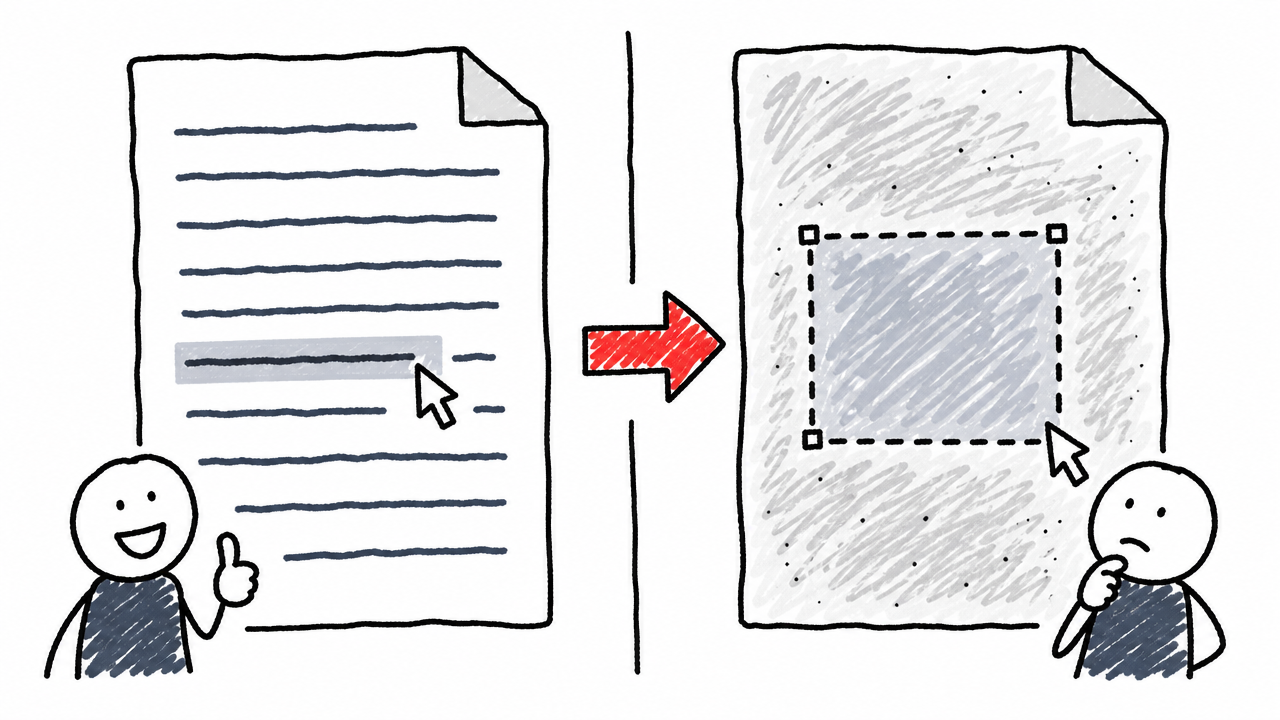
The single biggest factor in conversion quality is whether your PDF contains real text or just images of text. Try selecting and copying a line of text from your PDF. If it highlights and pastes correctly, you have a text-based PDF. If the entire page behaves like one flat image, it is a scanned or image-based PDF.
Text-based PDFs convert far more cleanly because the converter can extract actual text strings, fonts, and coordinates. Scanned PDFs require optical character recognition (OCR) to turn pixel patterns back into editable characters, and the results are less reliable.
PDFgear warns that OCR "prioritizes text recognition" and that exact formatting is not guaranteed for irregular layouts, multi-column designs, or decorative fonts (PDFgear). Expect to do manual cleanup on any scanned document.
Converting a PDF vs. inserting a PDF into PowerPoint
These are two different operations, and confusing them is a common mistake. PowerPoint's built-in feature can insert PDF content as a screenshot image or an embedded object, but neither produces editable slides. Microsoft states that inserting PDF content is not possible while editing in PowerPoint for the web, and warns that the quality of a PDF inserted as an object is reduced (Microsoft Support).
This guide covers true PDF-to-PPTX conversion, which produces editable text boxes, separate image objects, and recognizable slide layouts. If you also need to merge, split, or compress PDFs before converting, see our roundup of free online PDF tools: merge, split, compress, convert (no signup).
Step-by-step: convert a PDF to PowerPoint online at no cost
The core procedure is the same across every major tool. The whole process takes under two minutes for a typical document.
Step 1: Choose a free online converter
Pick a tool based on your PDF type and privacy needs. The main options are:
For a text-based PDF, any of these works. For a scanned PDF, choose PDFgear's Advanced mode or another tool with OCR.
Step 2: Open the converter in your browser
Go directly to the tool's PDF-to-PowerPoint page. Confirm the URL begins with https:// to ensure your file upload is encrypted in transit.
Step 3: Upload your PDF
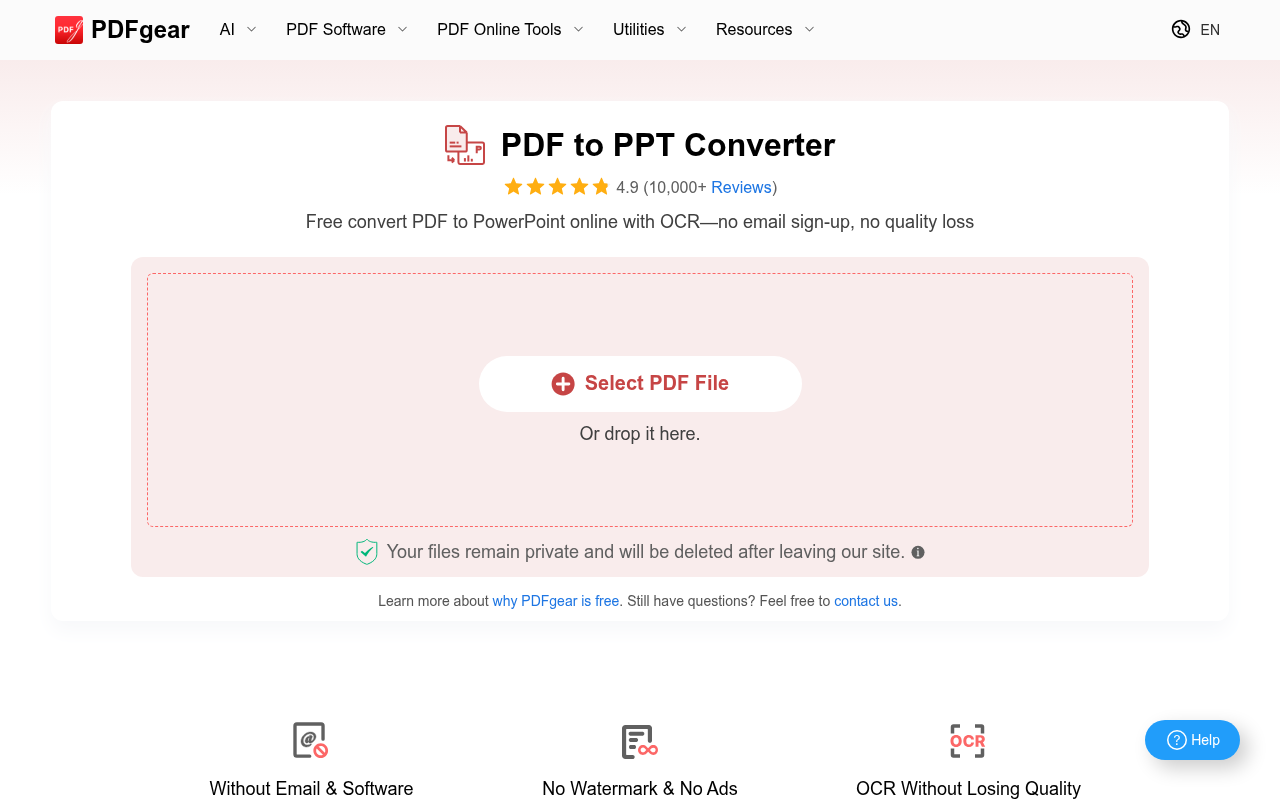
Drag and drop the file onto the upload area, or click the upload button to browse your local storage. Some tools also accept files from Google Drive or Dropbox.
Watch for file-size limits. PDFgear states a 100 MB online limit (PDFgear). If your PDF exceeds a tool's cap, try compressing it first or use a different converter.
Step 4: Select the conversion mode
For a text-based PDF, the standard or basic mode works. For a scanned PDF, switch to an OCR or "Advanced" mode if the tool offers one. Be aware that OCR is sometimes locked behind a paid tier (Smallpdf labels direct text editing as a Pro feature, for example).
Step 5: Start the conversion
Click the convert button. Processing time varies with page count and server load; a 20-page text-based PDF typically finishes in under 30 seconds.
Step 6: Download the PPTX file
Save the resulting .pptx file to your device. Some tools also provide a shareable link or the option to save directly to cloud storage.
Step 7: Open and inspect the converted presentation
Open the downloaded file in Microsoft PowerPoint, PowerPoint for the web, or Google Slides. Do not assume the conversion is perfect. Use the quality checklist below to verify every slide before presenting.
How to choose the right converter for your situation
The best tool depends on the specific PDF you are converting. Below is a decision framework covering the four most common scenarios.
Normal text-based PDF
Any of the free converters listed above handles this case well. PDFgear and iLovePDF let you convert without creating an account, so they are the fastest options. The output will have recognizable text boxes and images, though fonts can be substituted if the original typeface is not available on your system.
Scanned or image-based PDF
Choose a converter with OCR, such as PDFgear's Advanced mode. OCR works best on clean, single-column documents with standard fonts. Multi-column layouts, handwritten annotations, and decorative typography frequently produce garbled or misaligned output (PDFgear). Plan for manual cleanup in PowerPoint.
Confidential or sensitive PDF
Online converters upload your file to remote servers. Before uploading anything containing personally identifiable information (PII) or legally protected content, review each service's retention and deletion policy:
If those terms are not acceptable, use an offline desktop converter instead.
Redesigning a long report into a shorter deck
This is a different workflow. Direct converters faithfully map each PDF page to one slide. AI presentation makers summarize and restructure content, potentially changing wording, hierarchy, and emphasis. Do not treat AI restructuring as the same thing as faithful page-to-slide conversion; know which output you need before you start.
Will the converted PowerPoint be fully editable?
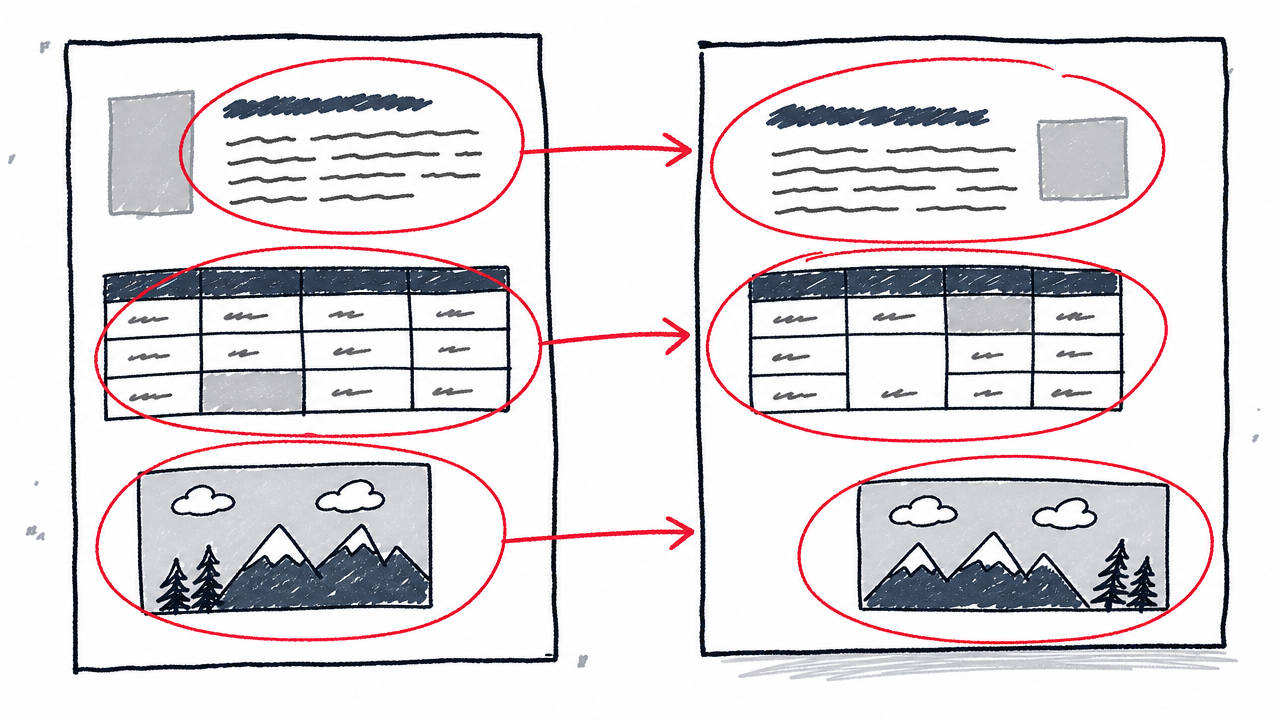
Partially. You will get text boxes with selectable text, separate image objects, and a basic slide structure, but the output is not a natively designed PowerPoint deck. Expect imperfections.
Common issues include:
- Font substitution when the original PDF typeface is not installed on your machine.
- Text reflow causing awkward line breaks or overlapping text boxes.
- Tables and charts flattened into images rather than remaining editable objects.
- Lost hyperlinks, speaker notes, animations, and transitions (PDF does not store these the way PPTX does).
- Misaligned vector graphics that looked crisp in the PDF but shift position in PowerPoint.
The output file uses the PPTX format, which belongs to the Office Open XML document family defined by ECMA-376 (Ecma International). Older PPT files use a legacy binary format; virtually all modern converters output PPTX, the current standard.
Post-conversion quality checklist
This checklist catches the problems that most converter landing pages never mention. Run through it before presenting or sharing the file.
- Page count vs. slide count. Compare the number of PDF pages to the number of PowerPoint slides. A mismatch signals missing or merged content.
- Fonts. Check every slide for substituted or missing fonts. If a font looks wrong, install the original typeface or replace it with a close match.
- Text boxes. Look for awkward line breaks, overlapping elements, and garbled characters, especially on slides with multi-column or complex layouts.
- Tables and charts. Click on tables and charts to confirm they are editable, not flattened into raster images.
- Images. Verify that images appear at full resolution and in the correct position on each slide.
- Hyperlinks. Click every link. Most converters drop or break hyperlinks during conversion.
- Slide dimensions. Confirm the aspect ratio (16:9 vs. 4:3) matches your presentation setup under Design > Slide Size.
- Full slideshow preview. Run the slideshow from beginning to end. Thumbnail view hides alignment and rendering issues that only appear at full screen.
- Target application test. Open and test the file in the exact version of PowerPoint (or Google Slides) that will be used for the actual presentation.
- Delete the uploaded file. If the converter's interface provides a deletion button or you have an account, remove the source file and conversion job from the service.
Troubleshooting common problems
Why does my converted PowerPoint have images instead of editable text?
Your source was almost certainly a scanned or image-based PDF. Re-convert the file using a tool with OCR enabled (such as PDFgear's Advanced mode). If the OCR output is still poor, the original scan quality may be too low for accurate recognition. In that case, manual retyping onto slides is the most reliable fix.
Why is the formatting broken?
Multi-column layouts, decorative fonts, embedded charts, and dense tables are the most frequent casualties of conversion. PDF is a fixed-layout format (defined by ISO 32000-2:2020), while PPTX is a presentation format; the two handle positioning, text flow, and object layering differently. Some manual cleanup in PowerPoint is expected for anything beyond simple single-column pages.
Can I convert only selected pages?
Most online tools convert the entire PDF. PDFgear notes that converting selected page ranges requires its desktop software rather than the online tool (PDFgear). A workaround: split the PDF into the pages you need first (using a free PDF split tool), then convert the smaller file.
Can I convert a password-protected PDF?
Most online converters cannot process a password-protected PDF directly. Remove the password first using a PDF password-removal tool, then upload the unprotected file for conversion.
FAQ
Can I convert a PDF to PowerPoint on an iPhone or Android phone?
Yes. The browser-based converters listed in this guide work in mobile browsers. Smallpdf, Adobe Acrobat online, and PDFgear all state mobile-browser compatibility. Upload, convert, and download the PPTX just as you would on a desktop.
Can I convert a PDF to PPTX without signing up for an account?
Several tools allow basic conversion without registration. PDFgear states that no email is required for its online converter (PDFgear). iLovePDF also provides a no-signup upload interface. Check each tool's current policy before uploading.
Can Google Slides open the converted PPTX file?
Yes. Upload the .pptx file to Google Drive and open it with Google Slides. Some formatting differences may appear because Google Slides renders Office Open XML (ECMA-376) slightly differently from Microsoft PowerPoint.
Are online PDF converters safe for confidential documents?
Files are uploaded to the provider's cloud servers. Review each service's retention, deletion, and encryption policies before uploading sensitive material. For documents containing PII or legally protected content, consider an offline desktop converter instead.
Will each PDF page become one PowerPoint slide?
In most direct converters, yes: each page maps to one slide. AI presentation tools may combine or restructure pages into fewer slides, which is a different workflow from faithful page-to-slide conversion.