
Best Free PDF Compressor Tools Compared (2026)
Comparing six of the best free PDF compressor tools across privacy, file-size limits, compression controls, and daily usage caps to help you pick the right one

The best free PDF compressor depends on what matters most to you: privacy, file-size reduction, granular control over image quality, or unlimited daily use. This comparison evaluates six tools: Timothe AI PDF Compress, Adobe Acrobat Online, Smallpdf, PDF24, PDFgear, and Sejda. Timothe stands out for local browser processing with no upload and no usage cap, while PDF24 and Sejda offer deeper compression controls and Adobe handles files up to 2 GB. The table below breaks it all down.
Side-by-side comparison table
Note: Limits and policies are as stated on each tool's official page at time of writing. Re-verify before relying on them, as providers update terms without notice.
Evaluation criteria: how we compared these tools
Every row in the table above was evaluated against eight criteria, each chosen because it affects the reader's decision.
1. Compression effectiveness and quality-size tradeoff. How much smaller does the file get, and how much visible quality is lost? Image-heavy and scanned PDFs compress well because their bulk is raster image data. Text-only PDFs with no embedded images are already efficient and may shrink by only single-digit percentages.
2. Free-tier limits and what "free" means in practice. Some tools gate stronger compression behind a subscription (Smallpdf) or cap hourly tasks (Sejda). "Free" is not uniform.
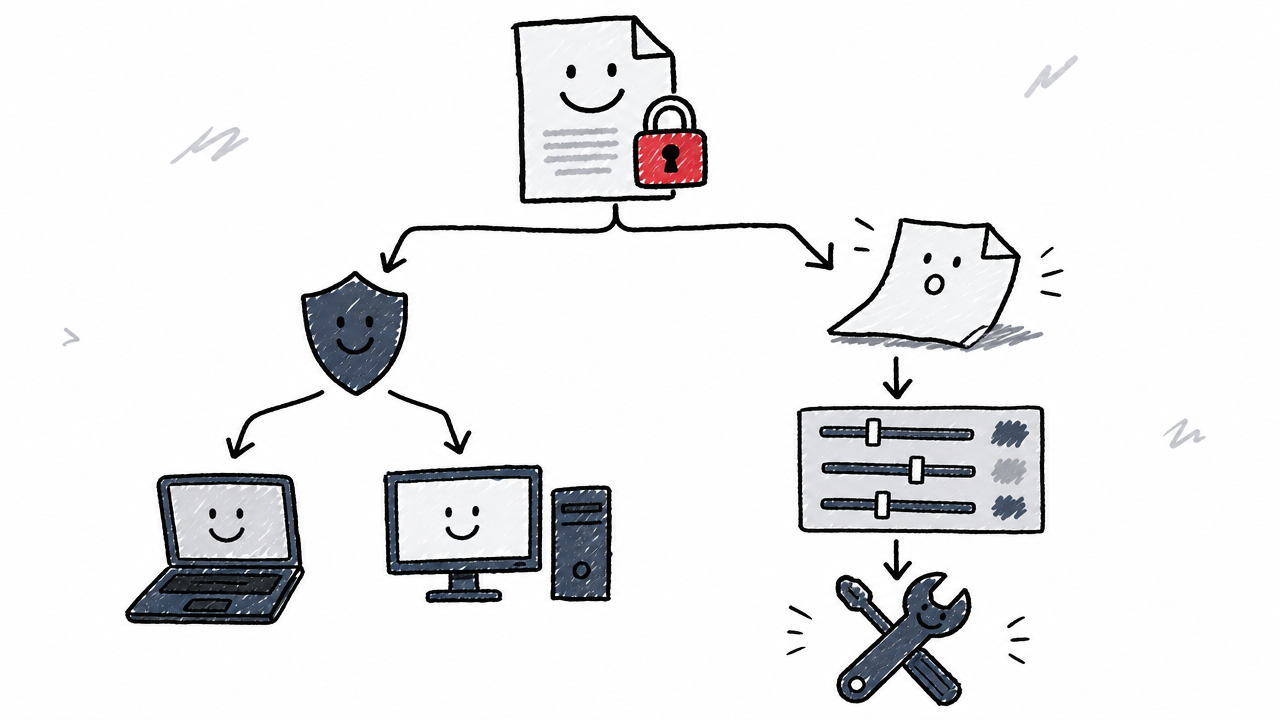
3. Processing model. Client-side (local browser) means the file never leaves your device. Server-side (cloud) means the file is uploaded, compressed on a remote machine, and downloaded back. This distinction is critical for confidential documents.
4. Privacy and file deletion. For server-based tools, we checked the stated deletion window and encryption claims.
5. Compression controls. Lossy compression recompresses raster images at lower JPEG quality or reduced DPI, yielding large reductions but potential quality loss. Lossless compression strips redundant objects, optimizes file structure, and removes unused metadata without touching visual fidelity, though reductions are modest.
6. PDF functionality preservation. Does selectable text survive? What about hyperlinks, annotations, form fields, and digital signatures?
7. Platform support. Browser-based tools work on Windows, macOS, Linux, iOS, and Android. Desktop apps may be Windows-only (PDF24 Creator) or cross-platform.
8. Account and sign-up needs. All six tools allow at least basic compression without creating an account.
Tool-by-tool breakdown
Timothe AI PDF Compress: best for privacy and unlimited use
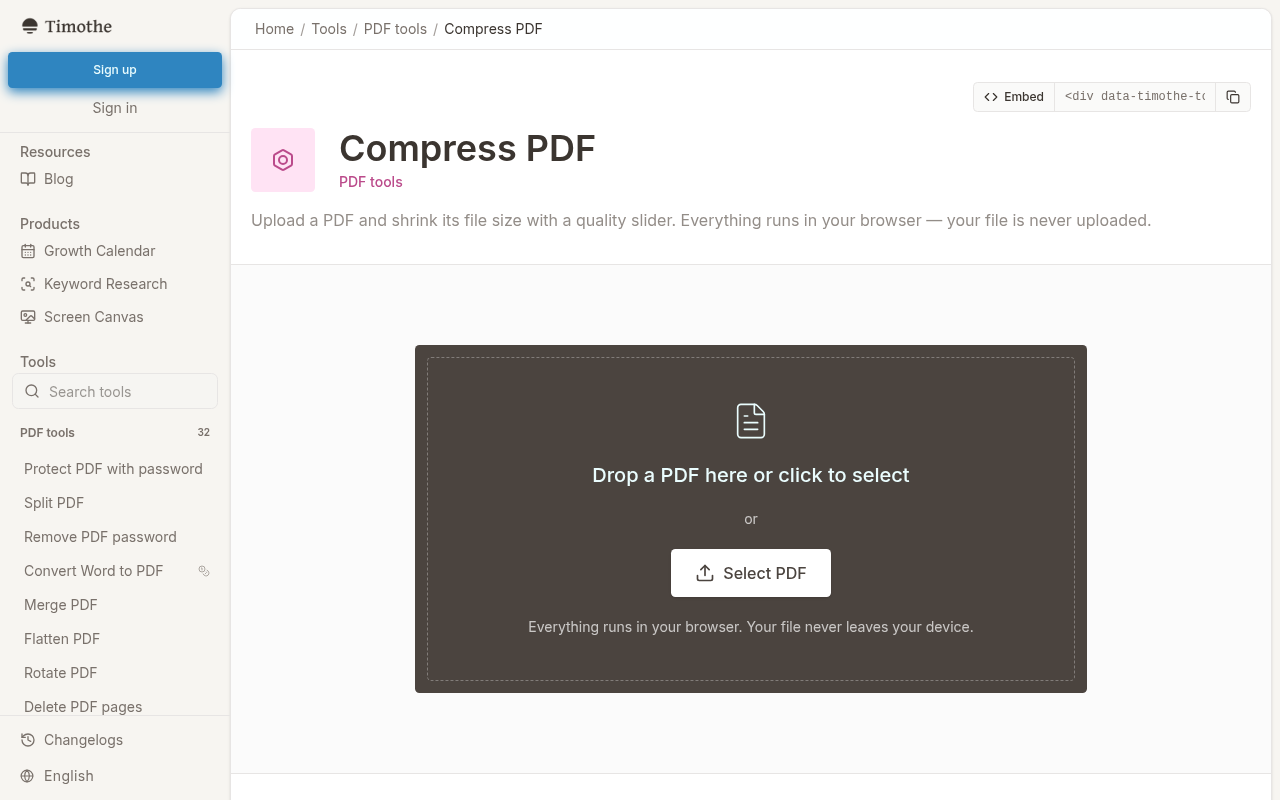
Timothe compresses your PDF inside the browser. The file is never uploaded to any server, making it the strongest choice for sensitive or confidential documents. No sign-up is needed, and there is no stated usage cap.
The tool uses a quality slider instead of vague presets. The default value is 0.6, and a July 2026 changelog extended the upper range to 0.95, giving users fine-grained control over the quality-size tradeoff. Embedded images are recompressed while text, vector graphics, and annotations stay untouched: text remains selectable and searchable after compression.
Because processing runs in the browser, performance depends on the device's available memory. A modern laptop handles typical business PDFs without issue. Compressing a large scanned document on a budget phone may be slow or hit memory limits, so heavy files are best handled on a desktop or tablet. For day-to-day use on any modern browser (Windows, macOS, Linux, iOS, Android), this tradeoff is minor.
If you need a step-by-step walkthrough of browser-based compression, see How to Compress a PDF Online for Free.
Adobe Acrobat Online: best for large files
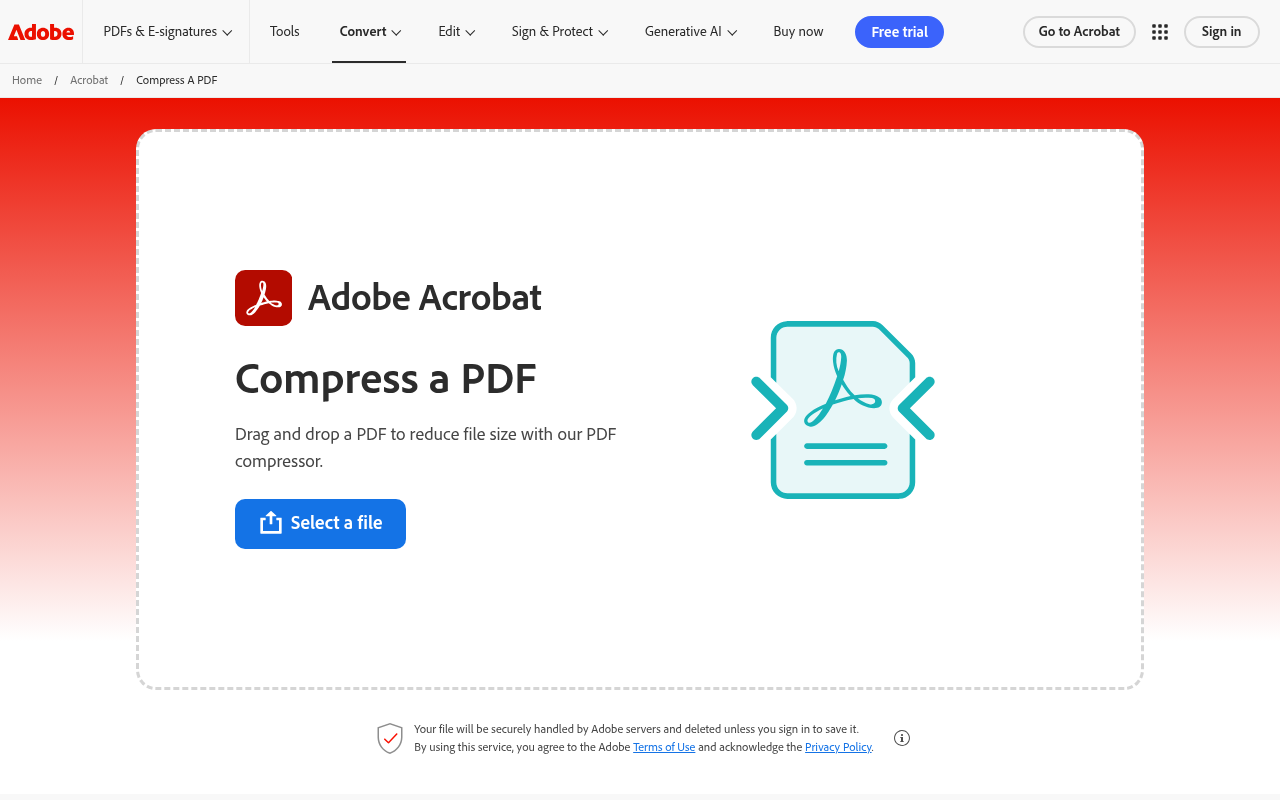
Adobe's online compressor handles files up to 2 GB, far exceeding every other free option on this list. Upload your PDF, choose High, Medium, or Low compression, and download the result. No installation is needed.
Adobe's server-side process reduces image resolution, flattens interactive layers, strips unused metadata, and optimizes redundant data. Files are processed on Adobe servers and deleted unless you sign in and save them to your account.
The major caveat: the exact free daily usage cap is not published on Adobe's official page. Users report being prompted to sign in or subscribe after repeated tasks. Verify current conditions before relying on it for batch work.
For a one-off compression of a large file, especially one that exceeds 100 MB limits elsewhere, Adobe is hard to beat. Just be aware that your document travels through Adobe's servers.
Smallpdf: best for a quick, polished experience
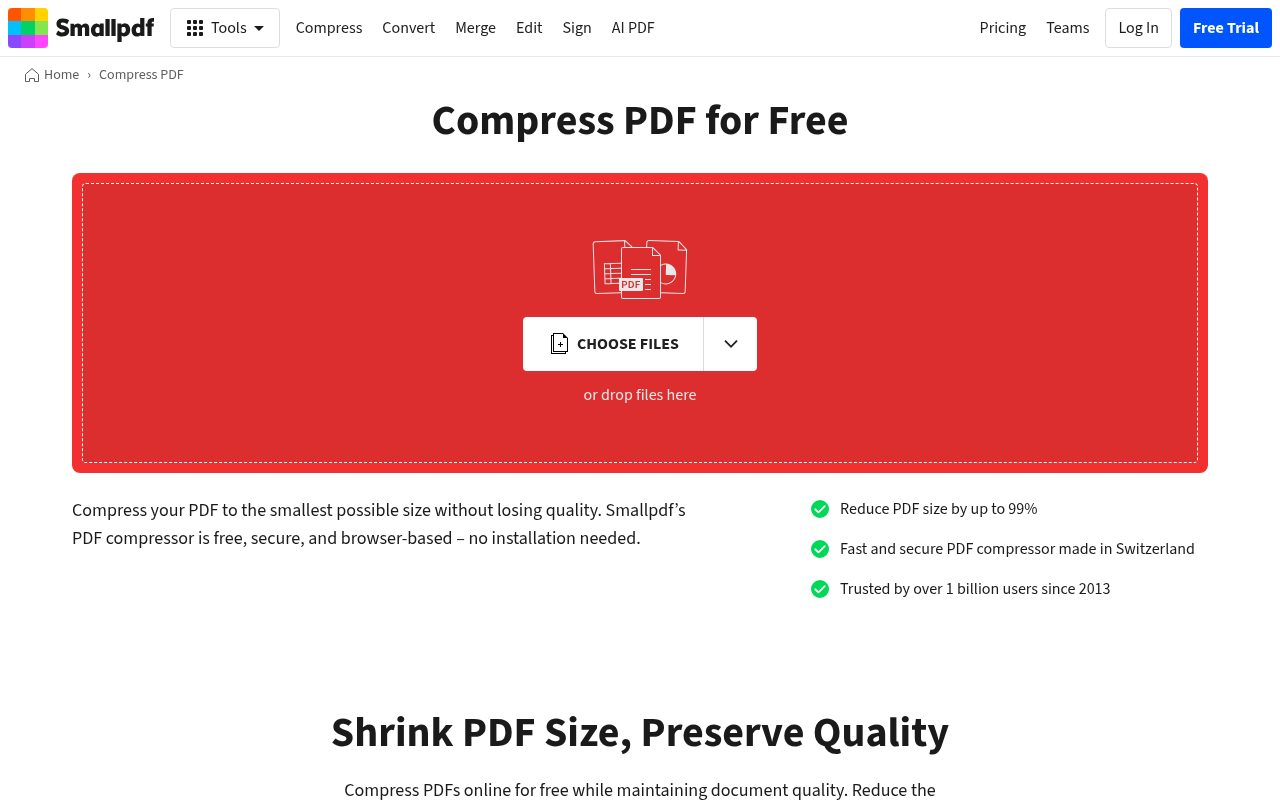
Smallpdf offers one of the cleanest drag-and-drop workflows in the category. The interface is intuitive, and a single compression task needs no account.
The catch is transparency: Smallpdf presents Basic, Moderate, and Strong compression levels, but only Basic is free. Moderate and Strong require a Pro subscription. Free-tier usage limits also apply, though the exact cap is not prominently displayed.
On the privacy side, files are deleted after one hour, transfers are protected by TLS encryption, and Smallpdf states compliance with GDPR and ISO/IEC 27001 certification. These are solid claims for a cloud-based service, though they do not change the fact that your file is uploaded to a remote server.
For a quick, low-friction compression when the document is not sensitive, Smallpdf delivers a pleasant experience. Just do not expect heavy compression on the free tier.
PDF24: best for advanced control and batch processing
PDF24 is the power user's pick. Its online compressor exposes granular settings that most competitors hide behind paid tiers: adjustable DPI, image quality percentage, grayscale conversion, font subsetting, metadata removal, and a dedicated lossless option.
The tool is free with no registration and no stated time or usage restrictions. Files are transferred over SSL to German servers and deleted after one hour. Multi-file selection makes batch processing straightforward.
An important distinction: PDF24's online tool is server-based. If you need offline, local processing, PDF24 Creator is a free desktop application for Windows that handles compression without uploading anything. These are two separate products sharing a brand.
For users who want to tune every parameter, whether that means setting exact DPI for a print workflow or stripping metadata for a public release, PDF24 is the most capable free option.
PDFgear: best desktop-plus-online combo
PDFgear offers two distinct compression paths. The online tool accepts files up to 100 MB, provides Low, Medium, and Strong presets, requires no registration, and adds no watermarks. Files are processed on Amazon cloud servers in the United States and deleted 20 minutes after you leave the site.
The desktop application, available for Windows and macOS, removes the 100 MB cap and processes files locally on your machine. This makes it a genuine offline option for users who want privacy but also appreciate having a browser-based fallback for quick tasks on shared or mobile devices.
If you switch between a personal laptop and a work computer where you cannot install software, the online-plus-desktop pairing is convenient. Treat them as separate tools when evaluating privacy: the online version uploads your file, the desktop version does not.
Sejda: best for tuning image quality and resolution
Sejda gives you direct control over JPEG quality (default 65%) and image resolution, with options at 72, 144, 288, and 720 PPI. Add grayscale conversion and the ability to remove unused fonts and images, and you have a tool that lets you hit precise file-size targets.
Free limits are real: 200 pages or 100 MB per document, 3 tasks per hour, and files deleted after 2 hours. For occasional use, these limits are workable. For heavy daily workflows, Sejda points users toward Sejda Desktop, an offline alternative where files never leave the computer.
Sejda is the best fit for users who know the exact JPEG quality and PPI their output needs and are willing to accept hourly task caps in exchange for that precision.
What is the difference between lossless and lossy PDF compression?
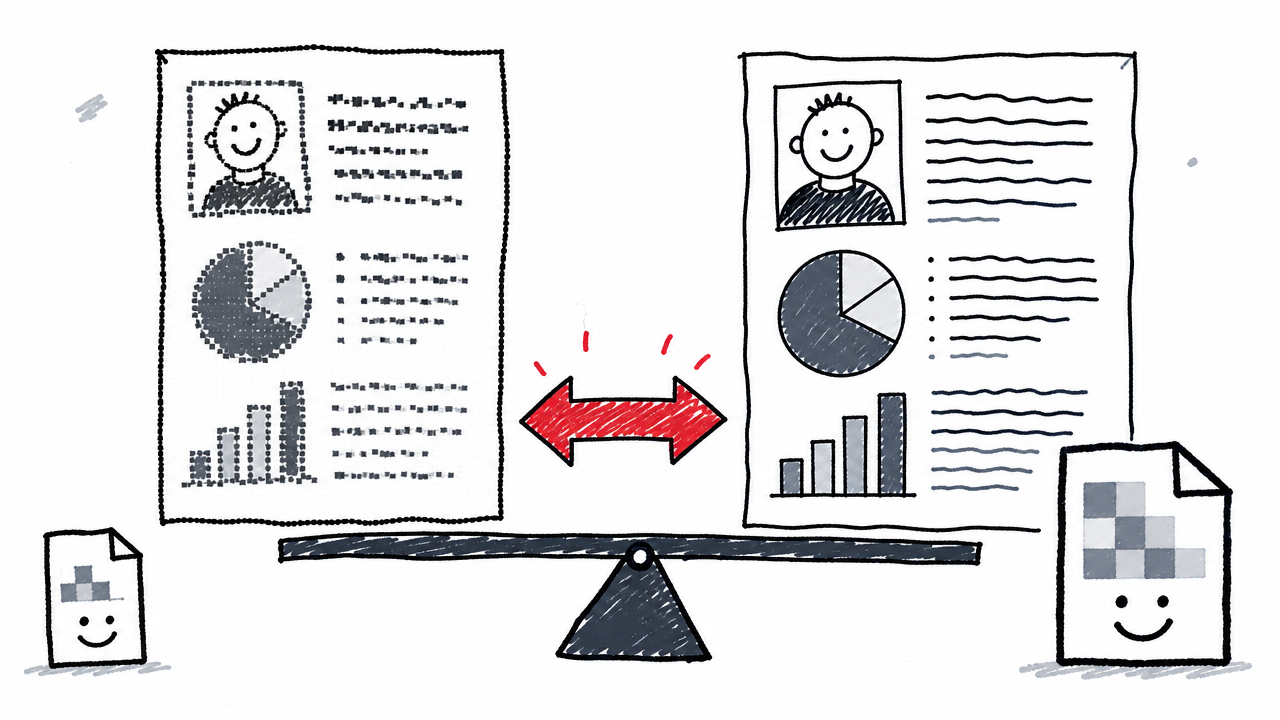
Lossless compression removes redundant objects, optimizes the internal file structure, and strips unused metadata. Visual quality is unchanged, but file-size reduction is modest, often only 5–15% for a typical document.
Lossy compression recompresses raster images at a lower JPEG quality or reduced DPI. The savings can be large (50% or more for image-heavy files), but aggressive settings produce visible quality loss: blurred text in scanned pages, soft photographs, and banding in gradients.
Vector graphics and text are generally unaffected by either method. The distinction matters most for scanned PDFs, which are full-page images. A 20-page scanned contract is almost all raster data, so lossy compression can shrink it greatly. A 20-page text report with no images will barely budge.
Tools like PDF24 and Sejda expose these settings directly. Timothe's quality slider controls the lossy-lossless spectrum: higher values (closer to 0.95) preserve more quality, while lower values favor smaller file size. Fixed-preset tools (Adobe, Smallpdf, PDFgear) abstract the choice into labels like "High" or "Strong," which is simpler but gives you less control.
Can I compress a PDF without uploading it?
Yes. Timothe AI PDF Compress processes your file in the browser. According to its official page, the PDF never leaves your device. The compression logic runs in your browser's memory using your device's CPU.
Every other online tool in this comparison (Adobe, Smallpdf, PDF24 online, PDFgear online, Sejda online) uploads your file to a remote server for processing. The file travels over the internet, is compressed on that server, and is sent back to you.
For users who cannot upload documents (confidential contracts, legal files, GDPR-sensitive personal data), the options are:
- Timothe AI PDF Compress (browser-based, no upload)
- PDF24 Creator (offline desktop app, Windows)
- PDFgear Desktop (offline desktop app, Windows/macOS)
- Sejda Desktop (offline desktop app)
Explore more tools that work without uploading in Free Online PDF Tools: Merge, Split, Compress, Convert (No Signup).
Is it safe to use a free online PDF compressor?
Server-based tools involve a real privacy tradeoff. Your file is sent to and stored on someone else's servers, even if only briefly. Key safeguards to check:
Local-processing tools like Timothe avoid the upload step, removing the server-side risk.
A practical rule: never compress password-protected or digitally signed PDFs through a cloud tool without understanding the consequences. Cloud processing may strip encryption or invalidate signatures. For highly sensitive documents, prefer local processing or offline desktop software. No tool should be assumed safe based on marketing claims alone.
Which free PDF compressor has no daily limit?
Timothe AI PDF Compress states no usage limit on its official page. PDF24's online tool also has no stated time or usage restriction. These two are the best options for users who compress many files throughout the day.
Adobe's free daily cap is not published. Smallpdf applies usage limits on its free tier. Sejda caps free users at 3 tasks per hour. PDFgear online does not state a daily limit, but the 100 MB per-file cap may be the practical bottleneck.
For heavy, recurring compression needs, Timothe and PDF24 are the most friction-free choices.
How to compress a PDF to 100 KB, 200 KB, 1 MB, or another target size
Not every PDF can hit an arbitrary size target. A 50-page scanned document may never fit under 1 MB at readable quality, and reaching 100 KB or 200 KB is realistic only for short, text-light files. But iterative compression can get you close.
Reaching 100 KB or 200 KB. These targets are achievable for single-page or few-page PDFs with small images. Use the most aggressive settings available: set Timothe's slider below 0.3, or use Sejda at 72 PPI with JPEG quality around 40–50%. If the file is still too large, consider converting images to grayscale (available in PDF24 and Sejda) or removing embedded fonts. For longer or image-heavy documents, 100–200 KB is often not realistic without unacceptable quality loss.
Reaching 1 MB or larger targets. Start with moderate settings: Timothe's default slider at 0.6, or PDF24/Sejda at medium DPI and JPEG quality. Check the output size. If the file is still too large, increase aggressiveness: lower the quality slider, reduce DPI, or switch to grayscale. Repeat until you reach the target or hit the quality floor you can accept.
Tools with visible sliders or numeric settings (Timothe, PDF24, Sejda) make iterative tuning far easier than tools with only fixed presets. For a detailed guide on reaching specific size targets, see How to Compress a PDF to 1MB or Less.
Does compression work on PDF/A files?
PDF/A is an archival format with strict rules about embedded fonts, color profiles, and metadata. Most free compressors treat PDF/A files like any other PDF: they will compress images and strip redundant data. However, aggressive compression may remove required embedded fonts or metadata, causing the output to lose PDF/A compliance.
If preserving PDF/A status matters (for regulatory or archival reasons), test the compressed output with a PDF/A validator. Tools that offer lossless compression (PDF24's lossless option) are less likely to break compliance than those using heavy lossy settings.
Recommendations by use case
Confidential or sensitive documents
Use Timothe AI PDF Compress for browser-based local processing with zero upload. If you prefer a desktop application, PDF24 Creator (Windows), PDFgear Desktop (Windows/macOS), or Sejda Desktop all process files offline. The file never touches an external server.
Large files over 100 MB
Adobe Acrobat Online supports files up to 2 GB, making it the only free online option for large PDFs. Any desktop app with no file-size cap (PDFgear Desktop, PDF24 Creator) also handles large files without upload bandwidth concerns.
Maximum compression control
PDF24 and Sejda expose DPI, JPEG quality, grayscale conversion, and font/metadata options. If you need to hit a precise balance between quality and size, these two give you the levers to do it.
Quick one-off compression with no account
Timothe, Adobe, and PDFgear Online all work without sign-up and deliver results in seconds. For a single file that is not confidential, any of the three is fast and frictionless.
Batch and recurring workflows
PDF24 supports multi-file selection in both its online tool and Creator desktop app. Sejda Desktop handles batch work offline within its free limits (3 tasks/hour for the online version).
Scanned or image-heavy PDFs
Any lossy tool will produce significant reduction, but Timothe's quality slider and Sejda's JPEG quality + DPI controls offer the most predictable results for image-dominant files. Start at moderate settings and decrease quality step by step to find the sweet spot.
FAQ
Does compressing a PDF remove selectable or searchable text?
No. Standard compression targets images, metadata, and internal file structure. Timothe preserves text and vector graphics. Tools that flatten interactive layers (some Adobe settings) may affect form fields, so check the output.
Will compression break hyperlinks, annotations, or form fields?
Most tools preserve hyperlinks and annotations. Aggressive flattening or re-rendering can remove form fields or invalidate digital signatures. Test with a sample file first, especially for signed PDFs.
Why does my PDF barely get smaller after compression?
Text-only PDFs with no embedded images are already efficient. Compression mainly reduces raster image data. If the PDF has few or no images, expect single-digit percentage reduction at best.
Can I compress a password-protected PDF?
Most online tools ask you to remove the password first. Timothe processes locally, so a browser-decryptable PDF may work, but files encrypted with modification restrictions will fail in any tool. Verify before relying on this for important documents.
Is Adobe Acrobat's online compressor free?
Adobe offers limited free online compression, but the exact daily cap is not published on its official page. Users may be prompted to sign in or subscribe after repeated use. Verify current conditions on Adobe's site.
Can I compress a PDF on my phone?
Yes. All six browser-based tools in this comparison work on mobile browsers (iOS Safari, Android Chrome). Timothe is a strong mobile option because it processes locally, avoiding slow uploads over cellular data. Keep in mind that phones have less memory than laptops, so large or image-heavy PDFs (over ~50 MB) may process slowly or fail on older devices. For heavy files on mobile, a cloud tool like Adobe or PDF24 offloads the processing to a server, which can be faster despite the upload step.