
How to Unlock a Password-Protected PDF - Online for Free
Learn how to unlock a PDF online free using a browser-based tool, remove permissions restrictions, and handle open passwords—step by step, no install needed.

If your PDF opens but blocks printing, copying, or editing, upload it to the Timothe Remove PDF password tool: no password entry may be needed. If the PDF demands a password before it even displays, you must know that password and enter it when the tool asks. No real online tool can crack an unknown open password. Only remove protection from PDFs you own or are allowed to change.
What you need before you start
Gather these four things first, and you will avoid the most common stumbling blocks.
- A modern browser. Chrome, Safari, Firefox, or Edge on desktop or mobile all work. No software install is needed.
- The PDF file itself. Save it locally or have it ready to upload from your device.
- The current password, if one is needed to open the file. If you do not know it, see the "forgot your password" section below.
- Permission. Removing protection is only right for PDFs you own or have been allowed to change. Adobe's own guidance states that only authorized people should remove restrictions, and server-based security policies may need the original policy author or an admin.
What type of PDF protection do you have?
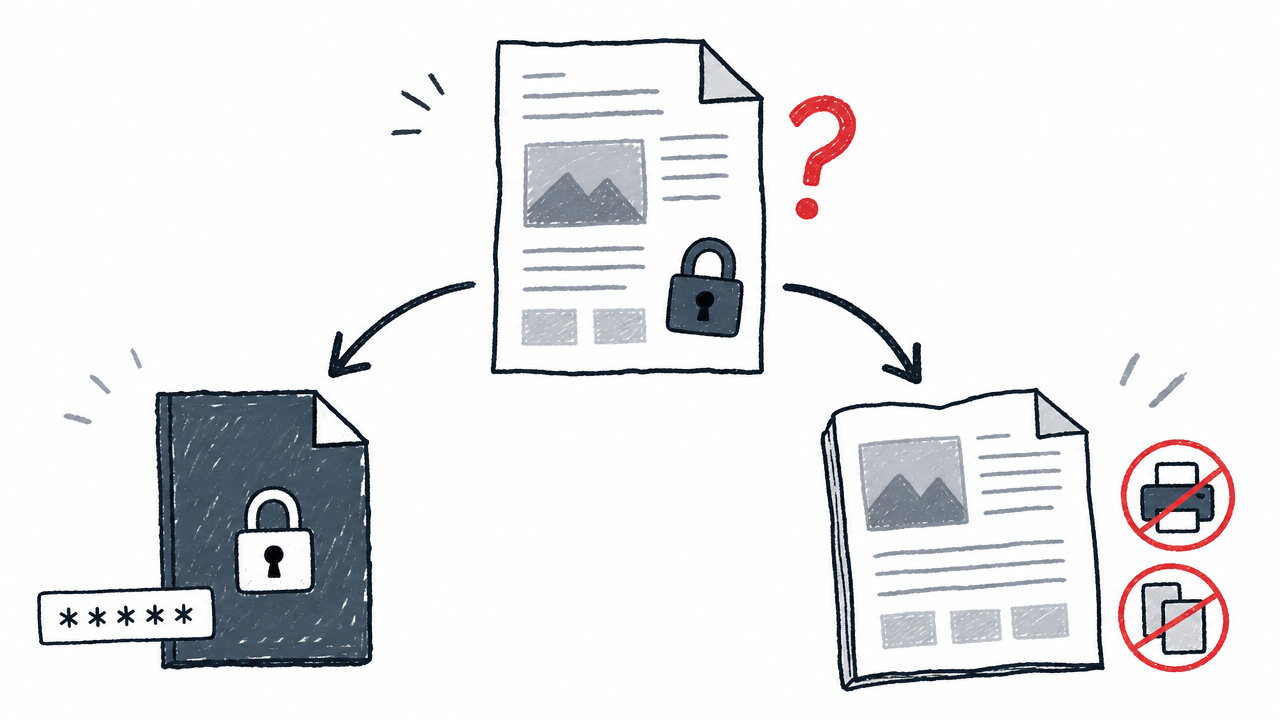
Knowing the protection type first saves you time and sets the right expectations. PDF security comes in two distinct forms, and the workflow differs for each.
Open password (user/document password)
An open password (also called a user or document password) stops anyone from viewing the file at all. Double-click the PDF and you see a password dialog before any content appears. Behind the scenes, the file's contents are encrypted, often with AES-128 or AES-256, as described in Adobe's PDF Services API docs. Without the correct password, decryption is impossible and no real online tool will bypass it.
Permissions password (owner/master password)
A permissions password (also called an owner or master password) lets the PDF open and display normally but restricts certain actions: printing, copying text, editing, or filling forms. You may notice the toolbar or document properties say "Secured" or "Restricted." Some online tools, including Timothe, can remove these restrictions without the owner password.
The Adobe Acrobat SDK security docs define the two password roles, and the formal spec lives in ISO 32000-2:2020, the current PDF 2.0 standard covering security and permissions.
Quick decision guide
Ask yourself one question: "Does the PDF ask for a password before showing any content?"
How to remove a PDF password online at no cost (step by step)
The fastest method uses the Timothe Remove PDF password tool. The whole process takes under a minute for most files.
Step 1. Open the tool. Go to https://timothe.ai/tools/pdf-unlock in any modern browser.
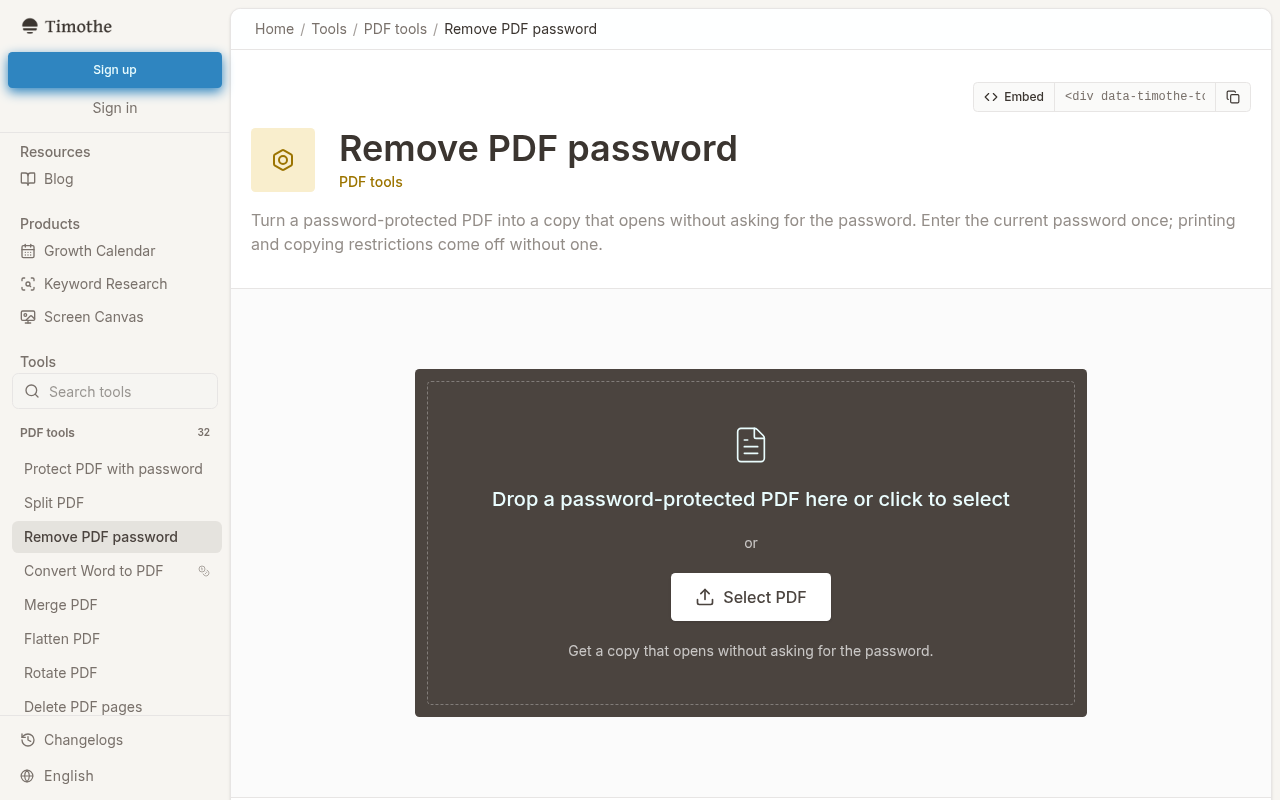
Step 2. Upload or drag your PDF. Click the upload area or drag the file straight from your file manager. The tool accepts standard .pdf files.
Step 3. Check the protection type the tool detects. After upload, the tool reads the PDF's security settings:
- If only permissions restrictions are present (printing, copying, or editing blocked), the tool may proceed without asking for a password.
- If an open/document password is required, a password field appears.
Step 4. Enter the current password (if prompted). Type the password you already know. The tool does not crack or guess unknown passwords; you must supply the correct one.
Step 5. Click "Unlock & download." The tool creates a new, unrestricted copy of your PDF. The original file's protection is not carried over.
Step 6. Save the new PDF copy to your device. Your browser will prompt you to save the file. Store it somewhere easy to find.
How to verify the result
Always verify before discarding the original. A quick check takes less than a minute and prevents surprises.
- Open the downloaded copy. Confirm that no password prompt appears.
- Test the action you need. Try printing, copying text, editing, or filling form fields, whatever the restriction blocked before.
- Check content and formatting. Removing security strips the protection layer, not the content itself. Pages, text, and images should look the same as the original.
- Keep the original protected file until you are sure the new version is complete and correct.
Can you remove a PDF password without knowing it?
For permissions-only restrictions (the PDF opens but blocks printing, copying, or editing): yes, some tools, including Timothe Remove PDF password, can lift those restrictions without the owner password.
For an open/document password (the PDF will not display at all): no. Strong AES-256 encryption makes brute-force attacks impractical. No real online tool will crack an unknown open password.
What to do if you forgot the password
- Check the original email or message from the sender; passwords are often in the same thread or a follow-up.
- Search your password manager.
- Contact the document owner or provider: your bank, employer, government portal, or whoever issued the PDF.
- Ask for a re-sent copy with a new password or no password at all.
Is it safe to upload a PDF to an online tool?
Convenience comes with a trade-off. Before uploading any file, check the service's data-processing and file-deletion policy. Not all online tools handle files the same way, so read each tool's stated practices rather than assuming blanket safety.
For highly private documents (medical records, tax returns, legal contracts), consider using a local desktop app such as Adobe Acrobat instead. A file that never leaves your device carries fewer exposure risks.
Best practices regardless of the tool:
- Confirm the connection uses HTTPS (look for the lock icon in your browser).
- Avoid uploading sensitive files over public Wi-Fi.
- Review whether the service retains copies and for how long.
For a broader look at choosing trustworthy browser-based PDF utilities, see our guide to Free Online PDF Tools: Merge, Split, Compress, Convert (No Signup).
Desktop option: removing a password in Adobe Acrobat
If you prefer an offline workflow or handle sensitive files often, the full version of Adobe Acrobat (not Acrobat Reader) can remove PDF passwords locally.
- Open the protected PDF in Adobe Acrobat.
- Go to All tools > Protect a PDF > Set security properties > Security > Change Settings.
- Deselect the open password or the editing/printing restrictions you want to remove.
- Save the file.
These steps are in Adobe's desktop help article on removing passwords. Acrobat needs a paid license, which makes the online route more practical for one-off use.
How to password-protect the PDF again after removing protection
After removing the old password, you may want to apply a fresh one, perhaps a stronger one or one shared with different people. The Timothe Protect PDF with password tool handles this in seconds.
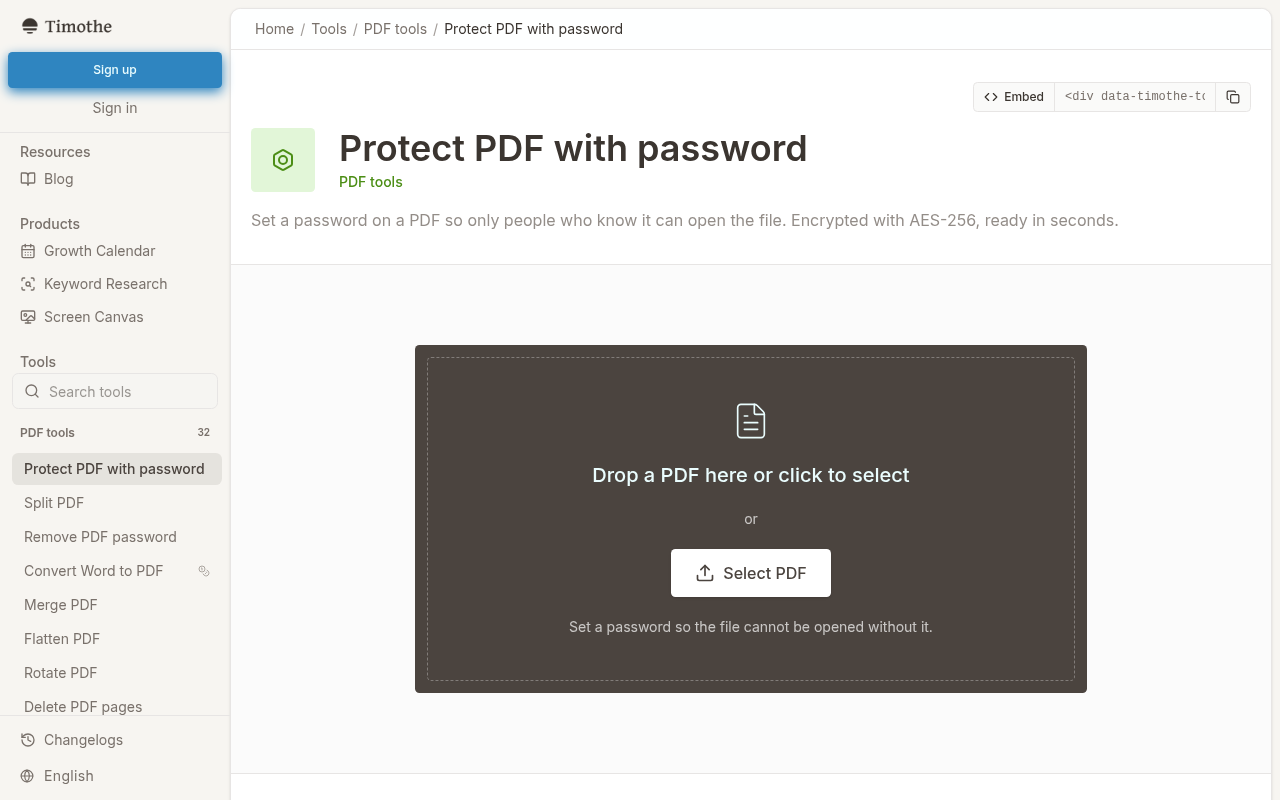
Upload your unrestricted PDF, enter and confirm a new password, then download the protected copy. The tool creates a new version using AES-256 encryption in PDF 2.0 format, leaving your original file untouched.
Keep in mind: a forgotten AES-256 password cannot be recovered through the tool. Store the new password safely. This workflow suits contracts, invoices, payslips, certificates, tax records, and medical records.
Troubleshooting common issues
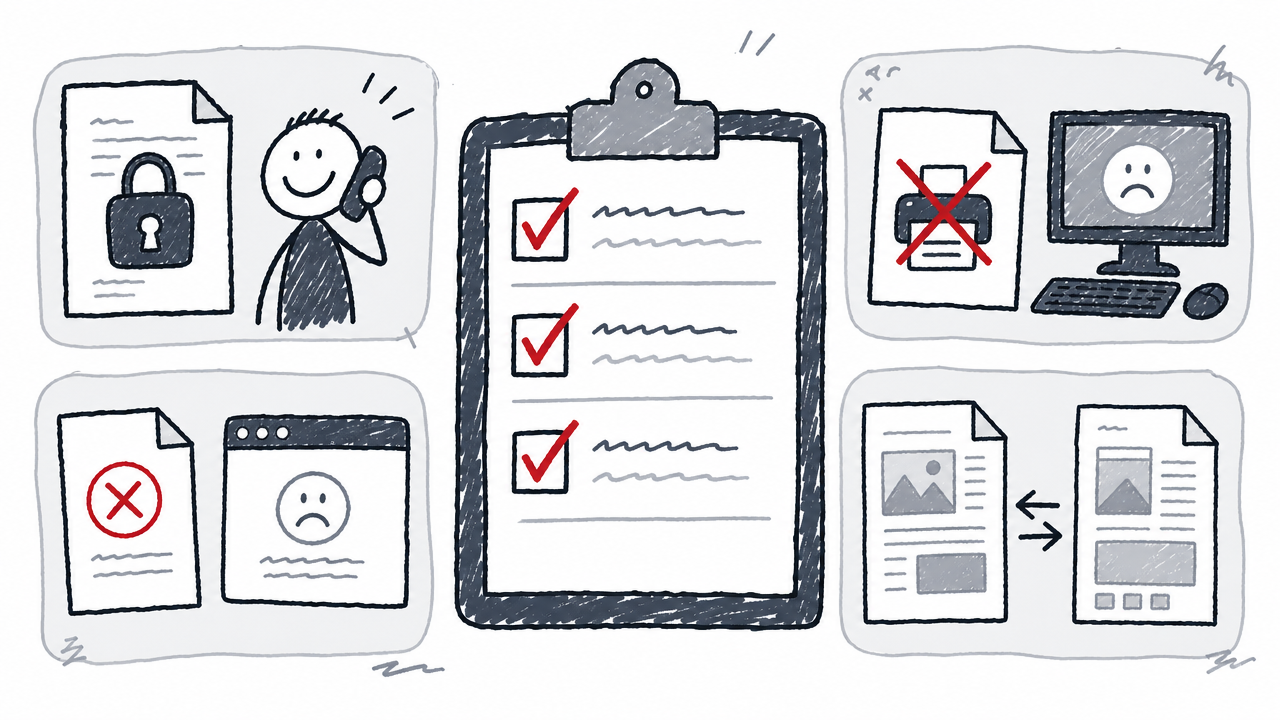
- The PDF still asks for a password. The wrong password may have been entered, or the file uses a server-based security policy that needs an admin. Re-upload and try again with the correct password. If the issue persists, contact the document owner.
- Printing or copying is still blocked. Some PDFs layer restrictions or include digital signatures that enforce separate policies. Try re-downloading, or use the Adobe Acrobat desktop method above.
- File will not upload. Check the file size, confirm it is a real .pdf (not a renamed .docx or image), and try a different browser.
- Formatting looks different. Removing security strips protection, not content. If the layout seems shifted, the viewing app may render fonts or spacing differently. Open the file in another PDF reader to compare.
FAQ
Is it legal to remove a password from a PDF?
Removing protection from a PDF you own or are allowed to change is generally fine. Doing so to a file you have no rights to may violate copyright or terms of service. When in doubt, contact the document owner. Adobe's guidance says only authorized users should remove restrictions.
Can I remove a PDF password on an iPhone or Android phone?
Yes. Browser-based tools like Timothe Remove PDF password work on any device with a modern mobile browser. No app install is needed.
Does removing protection change the PDF's content or formatting?
No. The process strips the security layer (password or usage restrictions) and produces an unrestricted copy. Text, images, and layout stay the same.
What is the difference between an open password and a permissions password?
An open (user/document) password stops anyone from viewing the PDF without entering it. A permissions (owner/master) password restricts actions like printing, copying, or editing but still lets the file be opened and read. Some tools can lift permissions restrictions without the owner password; an open password must always be known. The two roles are defined in the Adobe Acrobat SDK docs.
What should I do if I forgot my PDF password?
Check your password manager, the original email or message from the sender, or the provider's portal (bank, employer, government agency). No real online tool can recover or crack an unknown open password protected with AES-256 encryption. Your best option is to request a new copy from whoever issued the document.