
How to Rotate PDF Pages - Online for Free
Learn how to rotate PDF pages online free with no signup or upload—fix sideways or upside-down pages in seconds and download a permanently corrected file.

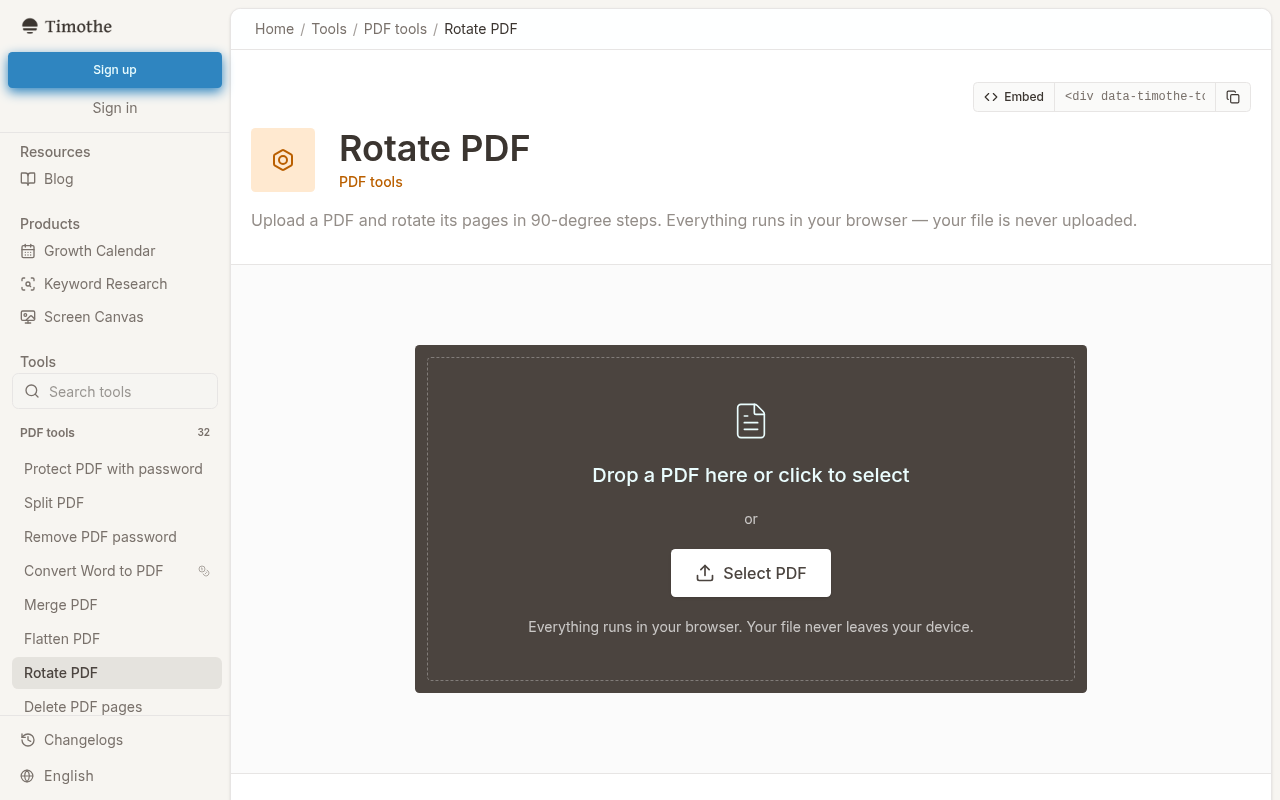
The fastest way to rotate PDF pages at no cost is to open Timothe's PDF Rotate in any browser, drag in the file, click the rotation controls on individual page thumbnails or rotate the entire document at once, check the live preview, and select Rotate & download. Timothe states that processing happens locally in the browser, so the file never leaves your device. No sign-up or installation is required.
What you need before you start
A modern web browser and the PDF file you want to fix. No software to install, no account to create.
Browser: Chrome, Firefox, Safari, or Edge on Windows, macOS, Linux, or any mobile device.
Your PDF file: Stored locally, in your downloads folder, or accessible from a file manager. Common scenarios include:
- Sideways scans from a flatbed or phone camera.
- Upside-down pages in a multi-page report.
- Landscape spreadsheets or drawings mixed in with portrait text pages.
- Documents assembled from several sources with inconsistent orientations.
One key distinction: This guide produces a permanently rotated PDF, not a temporary viewer rotation that reverts when you reopen the file. A dedicated section below explains why the difference matters.
How to rotate PDF pages with Timothe (step by step)
Follow these seven steps to correct any combination of misoriented pages and download a fixed PDF. The process takes under a minute for most documents.
Step 1: Open the Timothe PDF Rotate tool
Go to https://timothe.ai/tools/pdf-rotate in your browser. The tool is free, works on desktop and mobile, and does not ask you to create an account.
Step 2: Select or drag in your PDF
Click the file picker to browse for your PDF, or drag the file into the upload area. The Timothe tool page states that the file stays in your browser and is not uploaded to a server, making this step safe for sensitive documents.
Step 3: Rotate individual pages
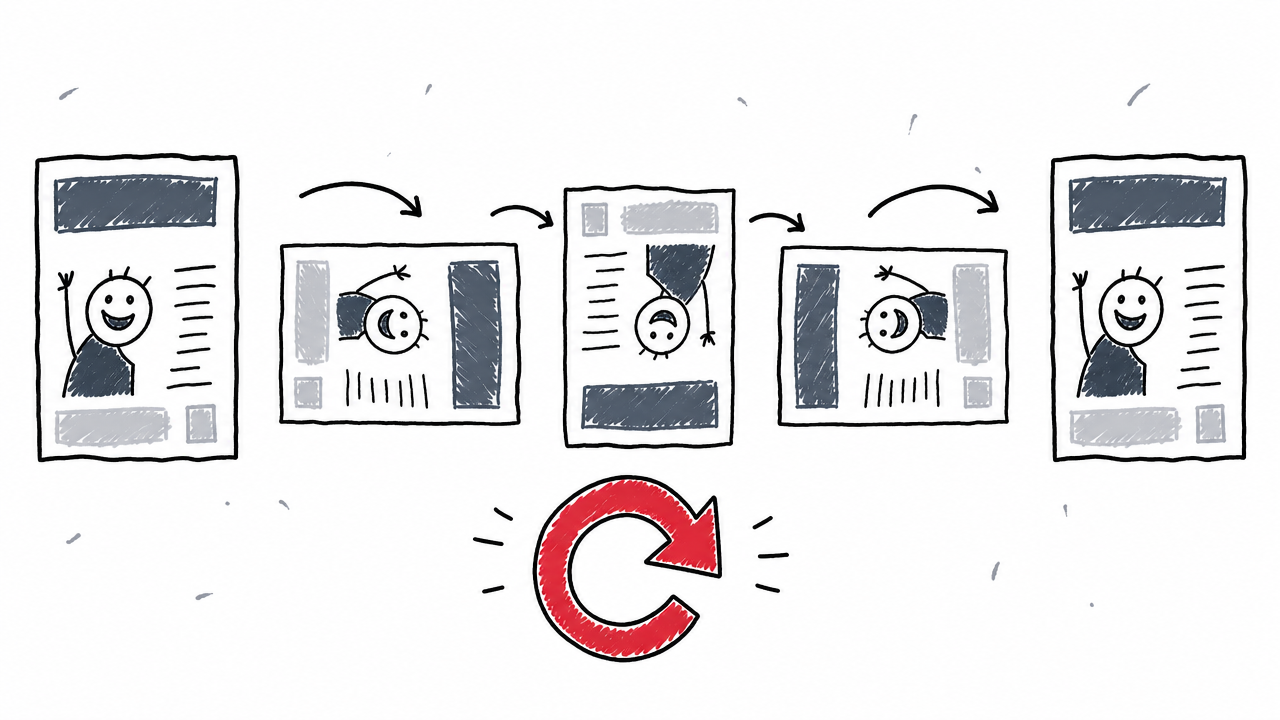
Click the Rotate 90° button on a specific page thumbnail to turn that page 90° clockwise. Click again for 180°, and a third time for 270° (the same as 90° counterclockwise).
Use this approach when only one or a few pages are misoriented. For example, page 5 of a report might be a landscape chart scanned sideways while the rest of the document is fine.
Step 4: Rotate all pages at once
Use the Rotate all controls and choose 90°, 180°, or 270° to apply the same rotation to every page in the document.
This is the right choice when the entire PDF has the same orientation problem, such as a batch of pages scanned sideways. Do not use "Rotate all" when only some pages need correction; you will end up rotating the already-correct pages too.
Step 5: Check the live preview
Scroll through the page thumbnails to confirm every page looks correct. Catching a mistake here saves you from downloading and re-doing the job.
Step 6: Select "Rotate & download"
Click Rotate & download to save the corrected PDF to your device. The downloaded file keeps the new orientation permanently.
Step 7: Verify the result
Reopen the downloaded PDF in any viewer: a browser tab, Apple Preview, Adobe Reader, or a phone PDF app. Confirm that every page displays and would print in the intended orientation. Keep the original file until you are satisfied the corrected version is right.
Timothe also offers a full suite of free online PDF tools: merge, split, compress, convert (no signup) if you need to do more with the file after rotating it.
How do I rotate just one page in a PDF?
Click the Rotate 90° control on the specific page thumbnail inside the Timothe tool. Only that page turns; every other page stays untouched. Click again to reach 180° or 270° if needed.
Typical use case: A 20-page contract where page 3 is a landscape floor plan scanned sideways. You rotate only page 3 by 90°, preview the document, and download the corrected PDF.
Other online tools such as Adobe Acrobat online and Smallpdf also support per-page rotation, but both require uploading the file to their servers. If your document contains confidential data, a local-processing tool like Timothe avoids that exposure.
How do I rotate all pages in a PDF?
Select Rotate all and pick 90°, 180°, or 270° in the Timothe PDF Rotate tool. Every page in the document rotates by the same amount in a single action.
This is ideal for documents where every page shares the same wrong orientation: a stack of landscape pages that should be portrait, or an entire scan that came out upside-down.
Clockwise vs. counterclockwise clarified:
Temporary viewer rotation vs. saved PDF rotation
Many people rotate a page inside their PDF reader, close the file, reopen it, and find the page is sideways again. Understanding the difference prevents this frustration.
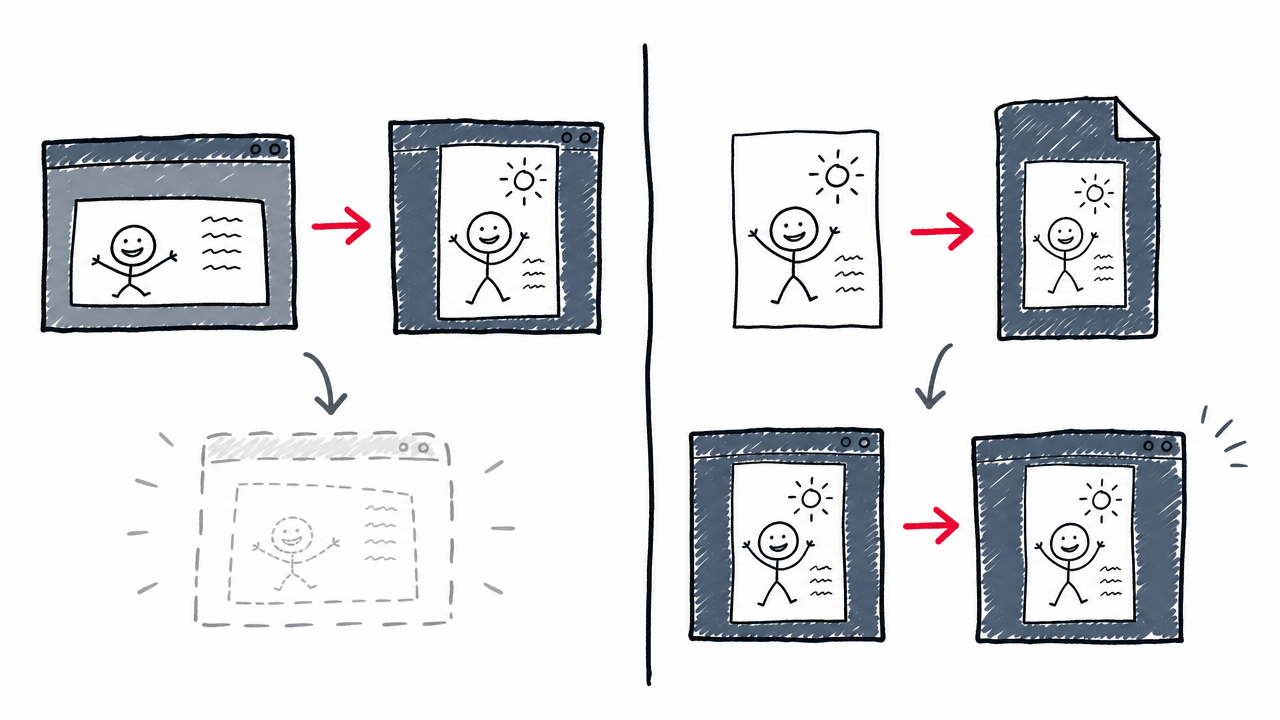
Temporary rotation happens inside PDF readers like Chrome's built-in viewer or some mobile apps. The software changes the display for the current session only. Closing the file discards the change, and the original orientation returns.
Saved (permanent) rotation is what a tool like Timothe produces. It writes the corrected orientation into the PDF's page data (technically, the /Rotate entry in each page object, as defined in the ISO 32000-2:2020 PDF specification and described in the PDF Association's raster specification). The downloaded file opens correctly in every viewer and prints in the intended orientation.
Practical takeaway: Always download the corrected PDF and reopen it in a different viewer to confirm the rotation stuck.
Can I rotate a PDF without uploading it?
Yes. The Timothe PDF Rotate tool page states that all processing happens client-side in the browser and the file is never sent to a server.
By contrast, conventional online rotators upload your file to cloud servers:
For confidential, legal, or medical PDFs, a local-processing tool reduces exposure. Client-side processing removes the need to trust a third party's deletion schedule.
Does rotating a PDF affect quality?
No. Rotation changes orientation metadata, not the underlying text, images, or vector content. The Timothe tool page states that the original layout, fonts, and image resolution are preserved.
Rotation tells the viewer which direction to display the page. It does not re-render or re-compress anything. A 300 DPI page stays at 300 DPI. Fonts and vector graphics remain sharp.
Rotation vs. flipping: what is the difference?
Rotation turns the page around its center by 90°, 180°, or 270°. This is what most users need when pages appear sideways or upside-down.
Flipping (mirroring) creates a mirror image of the page, either horizontally or vertically. Text reads backward in a flipped page.
If your document has backward (mirrored) text, you need a flip tool, not a rotation tool. If pages face the wrong direction, rotation is the correct fix.
Troubleshooting common rotation mistakes
Even a straightforward task can go wrong. Here are the most common pitfalls and their fixes.
Pages revert after reopening. You likely rotated the view inside a PDF reader rather than exporting a new file. Solution: use Timothe PDF Rotate (or any tool that saves the rotation), download the result, and reopen it.
Wrong pages got rotated. You used "Rotate all" when only specific pages needed fixing. Reload the original file and rotate page by page using the per-thumbnail control.
PDF appears blank or distorted after rotation. This is rare. Re-upload the original and try again. If the PDF is an image-based scan, check that the source file itself is not corrupted.
Cannot rotate on mobile. Make sure your browser is up to date. Timothe states compatibility with modern browsers on phones and tablets, including Safari on iOS and Chrome on Android.
Downloaded file has a generic name. Rename the file right after downloading so you do not confuse it with the unrotated original.
FAQ
Can I rotate a PDF that was created by scanning?
Yes. Image-based (scanned) PDFs are pages inside a PDF wrapper. Rotation works the same as with text-based PDFs; the page image displays in the new orientation.
Can I rotate PDF pages on an iPhone or Android phone?
Yes. Browser-based tools like Timothe PDF Rotate work in Safari, Chrome, and other mobile browsers. No app install is needed.
How do I change a PDF from landscape to portrait?
Rotate the page 90° clockwise or counterclockwise. Preview the result to confirm the text reads correctly before downloading.
Can I rotate different pages in different directions?
Yes. Use the per-page rotation control in Timothe. Click each thumbnail independently to rotate it by the amount and direction it needs, then download the combined result.
Do I need to install software to rotate a PDF?
No. Browser-based tools handle the task entirely online. Timothe states that nothing is installed and processing runs in the browser. For a wider set of PDF tasks, explore the collection of free online PDF tools: merge, split, compress, convert (no signup).