
How to Convert Images to PDF Online for Free
Free images/jpg/png to pdf converter online with no signup. Add images in your browser, reorder pages, pick Fit to image or A4, and download instantly.

The fastest free way to convert images to PDF is an in-browser tool like the Timothe's Image to PDF tool. It needs no upload, no signup, and no usage limits. Add one or more images, set page order and size, then download your PDF. You can also stay offline with built-in options on Mac, Windows, iPhone, and Android.
What you need before you start
You only need one or more image files and a modern browser. No software install, app store download, or account is required for the primary method in this guide.
Gather the JPG or JPEG files you want in the PDF. PNG and WebP work in the same flow on the Timothe AI tool. Use Chrome, Firefox, Safari, Edge, or another current browser on desktop or phone. Stay on a stable connection only long enough to load the page; after that, client-side conversion does not need your files to leave the device. Optional: know whether you want Fit to image, A4, or US Letter before you convert, so page layout matches how you will view or print the PDF.
How to convert JPG to PDF online: step-by-step
Open a free in-browser Image to PDF tool, add your JPGs, set order and page size, then convert and download. The steps below use the Timothe's Image to PDF converter as the main path because processing stays local, with no signup and no daily task caps.
Step 1: Open the Image to PDF converter
Go to https://timothe.ai/tools/pdf-image-to-pdf in any modern browser on Windows, Mac, Linux, or mobile. The page loads the converter in the browser; you do not install a desktop app. This tool is part of our free online PDF tools suite, so you can move from image conversion to merge, split, or compress workflows when you need them. Bookmark the URL if you convert scans or photo sets often.
Step 2: Add your images
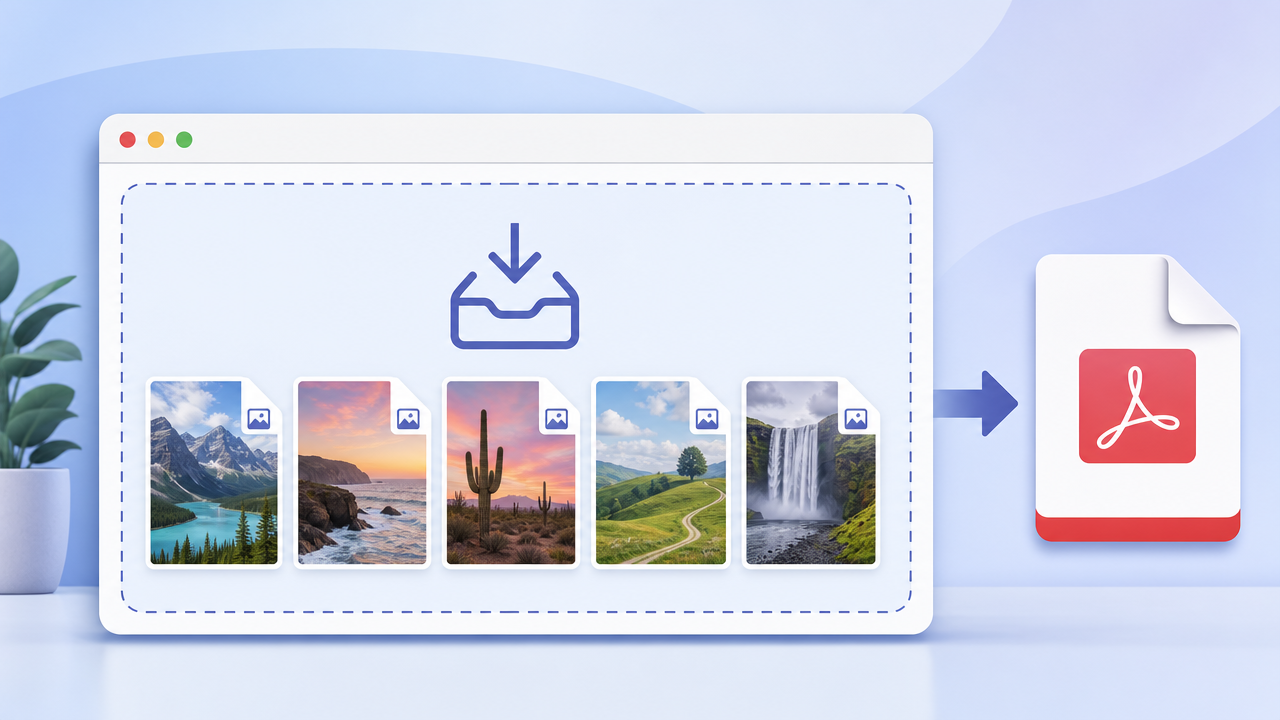
Drag and drop JPG files onto the drop zone, or click to browse and select files from your device. Select several files at once for batch conversion into one multi-page PDF. Mix supported types when needed (JPG with PNG or WebP on this tool). Wait until every thumbnail appears before you reorder or convert so you do not miss a page.
Step 3: Arrange and adjust settings
Drag thumbnails to set page order (first image becomes page 1, and so on). Choose page size: Fit to image keeps each page matched to the picture's dimensions; A4 or US Letter standardizes pages for printing and filing. Set orientation (portrait or landscape) when the option is available so wide photos are not cropped awkwardly. Apply margins if you need printable borders; use tighter or zero-style margins when the PDF is only for screen viewing. Preview the sequence once more before you convert.
Step 4: Convert and download your PDF
Click the convert control and wait for the browser to finish building the file. Download the PDF to your device and open it to confirm order, orientation, and clarity. On the Timothe AI tool, processing runs locally in the browser, so your images are not uploaded to a conversion server for this step. Store or share the PDF only through channels you trust after download.
Can I combine multiple JPG images into one PDF?
Yes. You can merge many JPG files into a single multi-page PDF in one pass: add every image, reorder thumbnails, then convert once.
Each image becomes one page (unless you later edit the PDF elsewhere). This is the usual path for scanned receipts, handmade notes, photo albums, ID sets, and document bundles that started as camera shots. Batch multi-select is faster than converting files one by one and then merging. Put covers or title scans first, keep chronological scans in date order, and place signatures or totals on the last pages when that helps the reader. If a tool only outputs one image per download, switch to a converter that supports multi-file input so you are not stuck stitching PDFs manually.
Is it safe to use an online JPG to PDF converter?
Safety depends mainly on whether the tool uploads your files to a remote server or converts them inside your browser. In-browser tools such as Timothe AI keep image data on your device during conversion; popular server-based tools (including iLovePDF, Smallpdf, and Adobe's online converter) send files to their infrastructure, then rely on encryption in transit and timed deletion after processing.
Server-based services typically protect transfers with TLS/SSL, which reduces risk on the network path but does not stop the provider from receiving a copy of your images. Smallpdf's JPG to PDF page describes free-tier use with limited daily tasks and deletion from servers one hour after processing. iLovePDF-style server workflows (as summarized on the Timothe AI comparison table, with free-tier details approximate as of June 2026) commonly delete files on the order of about two hours after processing. Adobe's online JPG to PDF is a major hosted converter and requires sign-in for continued use. Those policies matter, yet they still assume your scans briefly live on someone else's systems.
Client-side converters run JavaScript or WebAssembly in the page you already opened. Files are not sent to a conversion backend for the core embed-into-PDF step, which is the stronger default for passports, medical paperwork, tax forms, and workplace documents. Prefer local processing when content is sensitive; treat deletion timers on upload-based tools as a partial safeguard, not the same as never uploading.
What happens to your files after conversion?
Server-based tools store uploads long enough to process them, then auto-delete on a published schedule (for example, Smallpdf's one-hour window). Browser-based tools never place your originals on their conversion servers in the first place, so there is no waiting period for remote copies to expire. That difference is critical for IDs, medical images, and financial records: fewer copies means fewer places a file can linger, leak, or be misaccessed. After you download, you still control retention on your own disk or cloud drive.
Does converting JPG to PDF remove EXIF metadata?
Often yes for the embedded picture data. Re-encoding images for PDF embedding commonly drops the original EXIF block, including GPS coordinates, camera model or serial details, and timestamps, which pdfedit.com notes for JPG to PDF workflows. That stripping is a privacy benefit when you share photos of documents or locations. It is not a full redaction suite: text inside the image pixels remains visible, so blur or crop secrets before you convert if the picture itself exposes sensitive information.
Will converting JPG to PDF reduce image quality?
A good converter embeds the original image data without heavy recompression, so perceived quality stays effectively the same as the source file. Quality drops mainly when the tool scales pixels to fit A4 or US Letter, when you start from a low-resolution shot, or when a service re-encodes aggressively to shrink uploads. Fit to image avoids forced downscaling to an office paper size. The Timothe AI tool is designed to preserve original image data during in-browser embedding. For print packaging or large posters, keep high-resolution sources and only downscale if the PDF must stay small for email.
Server-based vs. browser-based converters: what's the difference?
Server-based converters upload your JPGs over the internet, build the PDF on a remote machine, then let you download the result. Browser-based (client-side) converters keep files local and run the work in your tab with technologies such as JavaScript and WebAssembly.
The newer privacy-first wave exists because users increasingly refuse to send scans of personal documents to third parties for a basic format change. Industry messaging around 100% in-browser processing reflects that demand. If you want a wider set of local-leaning utilities beyond images, browse the same free online PDF tools collection that includes merge, split, and related converters.
Are free online PDF converters really free? (hidden limits explained)
Many "free" JPG to PDF sites cap how much you can do without paying or signing in. Unlimited free use is less common than homepage headlines suggest.
According to Smallpdf's JPG to PDF offering, free users get 2 tasks per day. Adobe's online JPG to PDF expects sign-in for continued use, and merging workflows are tied to Acrobat Pro trial positioning around roughly $19.99+ per month in publicly described packaging. iLovePDF-class free tiers often impose size or batch limits. Canva-style free tiers may constrain assets or apply watermarks depending on the workflow. The comparison table on Timothe AI's Image to PDF page groups these patterns (including Smallpdf Pro on the order of about $10+/mo for unlimited conversions) with the explicit caveat that pricing and free-tier limits are approximate and based on publicly available information as of June 2026.
By contrast, the Timothe AI Image to PDF tool is positioned with no sign-up, no watermarks, and no usage limits for its in-browser conversion path. Always re-check a vendor's live pricing page before you buy a plan; use the comparison only as a orientation map, then verify current caps if you rely on a third-party free tier day to day.
How to control page size, orientation, and margins
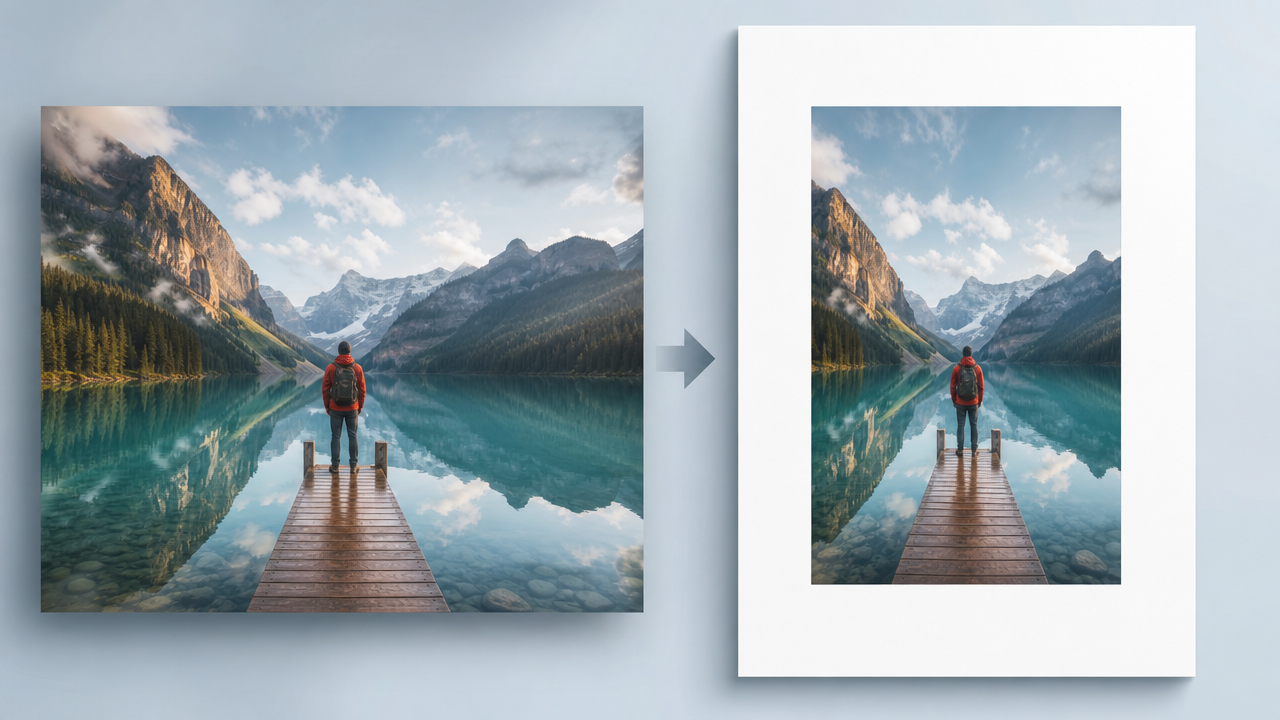
Choose Fit to image when each photo should keep its own aspect ratio (albums, screenshots, mixed camera sizes). Choose A4 or US Letter when the PDF must print cleanly on standard office paper or sit in a fixed binder layout.
Use portrait for tall scans and most documents; use landscape for wide diagrams and horizontal photos. Add margins when recipients will print and punch holes, or when edge content must not rest on the physical border of the page. Reduce margins when the PDF is screen-only and you want more pixel area. If an image looks letterboxed on A4, either switch to Fit to image or crop the source before conversion so the subject fills the page you chose.
What image formats can be converted to PDF besides JPG?
Most converters accept more than JPEG: PNG, WebP, GIF, BMP, TIFF, and HEIC appear across the market in different combinations. The Timothe AI tool supports JPG, PNG, and WebP for in-browser conversion. Hosted tools such as Adobe online and iLovePDF often advertise broader matrices that can include HEIC and TIFF. HEIC is the common default still format on many iPhones, so if a converter rejects HEIC, convert to JPG first (see How do I convert iPhone HEIC photos to PDF?), then build the PDF. When lossless diagrams matter, PNG is usually a better source than a heavily compressed JPEG.
How do I convert iPhone HEIC photos to PDF?
Convert HEIC to JPG first, then run the Image to PDF tool. Many in-browser PDF converters (including Timothe AI) accept JPG, PNG, and WebP but not Apple's HEIC/HEIF camera format, so a quick format change unlocks the same multi-page PDF flow as any other photo set.
- Open the free HEIC to JPG converter in your browser.
- Drop one or more
.heic/.heiffiles from your iPhone (AirDrop, Files, or a synced folder). Adjust the quality slider if you need a smaller file, then download the JPG — or a ZIP when you convert a batch. - Open the Image to PDF converter, add the JPGs, reorder pages, pick Fit to image or A4/US Letter, and download the PDF.
Both steps can stay in the browser with no signup. If you prefer to stay entirely on the phone with no converter site, use the Photos app Print → Save as PDF path in the iPhone section above. For PNG or WebP instead of JPG after HEIC, use the related HEIC converters linked from that tool page, then feed the result into Image to PDF the same way.
How to convert JPG to PDF without any online tool (built-in OS methods)
You can create a PDF from JPG files with tools already on Mac, Windows, iPhone, and Android. These paths need no converter website and work well when privacy policy or offline use is the priority.
On Mac: Using Preview ("Export as PDF")
Open the image in Preview (double-click the file or open it from File → Open). To combine several images, open them in Preview and arrange or merge into one window as your macOS version allows, or start from a multi-page draft you build by adding images into a single document workflow. Choose File → Export as PDF, pick a name and location, and save. You can also choose File → Print, then use the PDF menu in the dialog → Save as PDF. Open the result in Preview to confirm page order before you share it.
On Windows: Using Microsoft Print to PDF
Open the JPG in the Photos app or another viewer. Choose Print, set the destination to Microsoft Print to PDF, adjust orientation and paper size if shown, then save the .pdf file. For several images, select them together in File Explorer, open them from the shell or Photos as your build supports, and use Microsoft Print to PDF so Windows emits one multi-page file when the pipeline allows. If the UI only sends one page, create separate PDFs in sequence or use an in-browser multi-file tool when offline constraints ease.
On iPhone: Photos app "Print → Save as PDF"
Open the image in Photos, tap Share, then Print. On the preview, pinch outward on the thumbnail to open a full PDF view, then tap Share again and Save to Files. Pick an on-device folder or iCloud location. Repeat per image, or use a multi-select share flow when you need several pages and your iOS version groups them (if not, merge later on desktop). This path never requires a third-party converter app.
On Android: Built-in options
Exact labels vary by manufacturer, but two patterns cover most phones. In Google Photos, open the image, open the share path, and choose a Save as PDF destination when offered. From many Files or document UIs, use the system print sheet and select a Save as PDF virtual printer, then store the file in Downloads or Drive. If HEIC or vendor-raw formats fail, convert to JPG in the camera or photos settings first. When stock options feel limited, Safari or Chrome on the phone can still load a browser-based converter without installing a store app.
Can I convert JPG to PDF on my phone?
Yes. The Timothe's Image to PDF tool runs in mobile browsers such as iOS Safari and Android Chrome with the same select → arrange → download flow. For fully offline work, use the iPhone Photos print-to-PDF gesture or Android's Save as PDF options described above. On small screens, convert fewer ultra-high-resolution photos at once if the tab becomes memory-heavy, and download the PDF to Files or Drive before you close the browser.
Do I need to create an account to convert JPG to PDF?
No. With the Timothe AI converter you do not create an account, and several other browser-based tools follow the same no-signup pattern. Adobe's online converter requires sign-in for continued use, and other products gate batch features or higher limits behind registration. Skipping signup is both a convenience and a privacy win: less personal data tied to each quick conversion job.
Common mistakes and troubleshooting
Most failures come from layout choices, source format quirks, or huge camera files, not from PDF itself being fragile.
- Images look cut off: The page size or orientation does not match the photo. Switch to Fit to image or set landscape for wide shots, then convert again.
- Pages are in the wrong order: Reorder thumbnails before you click convert; downloading first locks the sequence until you rebuild.
- PDF is enormous: High-megapixel phone photos embed as large binary images. Downscale or compress sources before conversion when email limits apply.
- HEIC will not load: The converter may only accept JPG/PNG/WebP. Convert with HEIC to JPG first, or export as JPEG from the iPhone, then retry Image to PDF.
- PDF opens sideways: Fix orientation in the converter, or rotate the source image, then regenerate the file.
- Free tool blocked mid-job: You may have hit a host's daily task cap (for example, Smallpdf's 2 tasks/day on the free tier). Use an unlimited in-browser tool or wait for the vendor's reset window.
- Quality looks soft on A4/Letter: Scaling shrank the picture. Prefer Fit to image or start from a higher-resolution original.
FAQ
What's the highest number of images I can combine into one PDF?
The Timothe AI tool does not advertise a hard image cap; practical limits follow device memory and browser strength. Server-based free tiers often cap batch size or daily tasks, so large albums hit walls sooner there.
Can I convert JPG to PDF offline?
Yes. Use macOS Preview or Windows Microsoft Print to PDF, or the iPhone/Android print-to-PDF paths above. Client-side web tools can also keep working offline after the page and scripts have loaded, because conversion does not need an upload API.
Does the Timothe AI tool support PDF to JPG conversion too?
Yes. For the reverse workflow, use convert PDF to JPG tool.
Will my PDF have a watermark?
No. The Timothe AI Image to PDF path does not add watermarks. Some free-tier design or converter products (Canva and others, depending on assets and plan) might.
Can I edit or annotate the PDF after creating it?
Image to PDF focuses on conversion and page layout. For broader edit, merge, or split work, use the free online PDF tools suite.
How do I turn iPhone photos into a PDF if they are HEIC?
Use Convert HEIC to JPG, then add the JPGs to Image to PDF. Full steps are in How do I convert iPhone HEIC photos to PDF?.