
How to Combine PDF Files Online for Free
Combine PDF files free in your browser with no signup or watermark. Reorder and merge on-device so files never leave your device.

You can combine PDF files in your browser with Timothe AI PDF Merge: add your files, reorder them, then merge and download. No sign-up, no watermark, and files never leave your device. Below is the step-by-step method, then privacy notes, tool limits, Mac and Windows built-ins, mobile use, and common edge cases.
What you need before you start
You need two or more PDF files, a modern browser, and nothing else. No install, no account, and no paid plan for the core merge. Browser-based tools run in Chrome, Edge, Safari, or Firefox on desktop or phone.
Gather the PDFs you want in one document (cover letter and resume, scanned pages, invoices, report sections). Confirm they open normally. If a file is password-protected, plan to remove the password first; most merge tools cannot process locked files.
Use a current browser so drag-and-drop and in-page download work smoothly. You do not need Adobe Acrobat, desktop software, or a cloud account for the free online path below.
File size caps differ by product. Many server tools limit files, pages, or daily tasks. Timothe AI PDF Merge processes files in the browser, so there is no upload to a remote merge server before you combine them.
How to combine PDF files online (step-by-step)
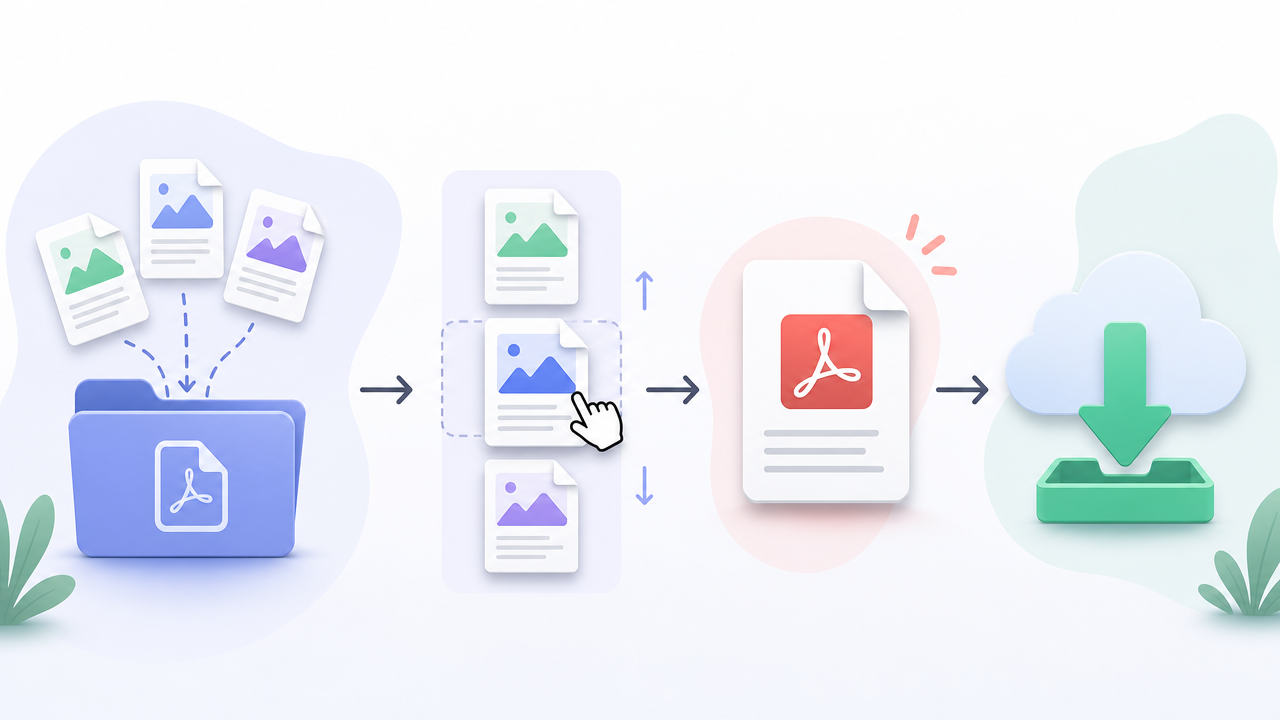
Open a free browser merge tool, add your PDFs, set the order, run merge, and download the single file. On Timothe AI PDF Merge that flow stays on your device: no account and no watermark. The steps below use that tool; the same pattern appears on most free merge pages.
If you also need split, compress, or convert beside merge, browse the suite of Free Online PDF Tools — Merge, Split, Compress, Convert (No Signup).
1. Open the PDF merge tool
Go to https://timothe.ai/tools/pdf-merge in your browser. You should land on the merge interface without creating an account. Keep the tab open until you finish downloading so you do not lose the in-session result.
2. Add your PDF files
Drag PDFs onto the page, or use the browse control to pick files from disk. Add every file you want in the final document in one pass when you can, so you reorder once instead of starting over.
Only PDF input belongs here. Word, Excel, and images need conversion first (covered later). If a file fails to appear, confirm the extension is .pdf and that the file is not corrupt.
3. Reorder files into the sequence you want
Drag items in the list so page order matches what readers should see: title pages first, exhibits last, chronological scans in date order. Order in the UI becomes order in the merged file.
If you prep files on disk, numbered prefixes such as 01_intro.pdf and 02_appendix.pdf make the default sort easier before you fine-tune by dragging.
4. Click Merge
Start the merge and wait for the browser to finish building the combined PDF. Client-side tools do the work locally with JavaScript PDF libraries rather than sending bytes to a remote worker.
Do not close the tab mid-process. For large sets, give the page time; local CPU and memory matter more than upload bandwidth when nothing is sent to a server.
5. Download the combined PDF
Save the output to your device and open it once to check page order, fonts, and images. Rename the file to something clear (Q3-report-full.pdf) before you share or archive it.
That is the full path at no cost: five concrete actions, no installer, and no account wall on Timothe AI. The next sections explain why processing location matters, how free tiers compare, and what to do on Mac, Windows, and phones.
Why browser-based merging matters for your privacy
Most well-known free merge sites upload your PDFs to their servers, process them there, then promise to delete the files after a short window. Browser-based tools keep the bytes on your device and merge in the page itself. That is a better default for contracts, medical records, tax returns, and other sensitive packets.
Server-side products such as iLovePDF, Smallpdf, and Adobe Acrobat online need your files on their infrastructure to run the job. They typically advertise TLS in transit and timed deletion after processing (about one to two hours on several free tools). Deletion policies reduce long-term retention risk, but a third party still received a full copy while the job ran.
A public flyer is low risk. HR packets, patient forms, or unsigned agreements are not. Ask who can see the file during processing, how long copies remain, and whether a breach or misconfiguration could expose content that was "only there for an hour."
Client-side merging takes a different route. As microapp.io's write-up on browser-based PDF merging describes, tools can use libraries such as pdf-lib in JavaScript so the merge runs entirely in the browser. Your files are not uploaded to the operator's merge servers for that workflow. Timothe AI PDF Merge follows this model: combine on-device, then download locally.
Privacy is not the only reason to prefer local processing. Skipping upload helps on slow or metered connections and avoids "file too large to upload" failures when the bottleneck was transfer, not PDF structure. You still protect the download afterward (disk encryption, careful sharing links), but you remove an unnecessary remote copy during the merge itself.
Free PDF merge tools compared
Free merge tools differ on where processing happens, how many files or tasks you get without paying, whether you must sign in, how long server copies remain when uploads occur, and what paid tiers cost. Use the table below as a plain snapshot; recheck each vendor's page before a high-stakes job because limits change.
Honest reading of the grid: Adobe's published online limits are generous on pages and file count, but the product sits inside a sign-in and subscription ecosystem. iLovePDF is straightforward for batches up to 25 files with roughly two-hour deletion. Smallpdf is easy but tight on daily free tasks. combinepdf.com caps around 20 files with a one-hour download window. Jotform is size-sensitive at about 30 MB. Timothe AI's differentiator is local browser processing rather than another "we delete uploads later" promise.
For a living comparison block maintained next to the product, prefer the table on Timothe AI PDF Merge when you need the latest positioning against those same names.
Is there a free PDF merger with no watermark?
Yes. Timothe AI PDF Merge and several mainstream free merge flows output a normal PDF without stamping a tool watermark on every page. Watermarks are more often a trial tactic on broader "PDF editor" products than on dedicated merge pages.
Still verify the downloaded file once. If a site's free editor path overlays branding, switch to a merge-only tool or a client-side option rather than paying only to remove a stamp.
How many PDF files can I merge at once?
Limits are per product, not per internet. iLovePDF's free tier allows up to 25 files. combinepdf.com lists up to 20 PDFs. Adobe Acrobat online publishes up to 100 files, 1,500 pages total, and 500 pages per file. Smallpdf constrains free usage to about two tasks per day rather than a single huge batch. Jotform's practical ceiling is about 30 MB. Browser-based Timothe AI is not framed as a fixed "N files on a server queue" product because merge work stays local; device memory is the real constraint.
How to merge PDFs on a Mac without extra software
macOS Preview can merge PDFs with no website and no extra app: open one PDF, show thumbnails, drag other PDFs (or their pages) into the sidebar, arrange them, then export. It is offline, costs nothing, and works well when files should not leave the machine.
- Open the first PDF in Preview.
- Choose View > Thumbnails so the page sidebar is visible.
- Drag another PDF file into the sidebar (or drag selected thumbnail pages between documents).
- Rearrange thumbnails until the order is correct.
- Choose File > Export as PDF (or Print, then save as PDF if you prefer that route) and pick a name and folder.
Preview suits small to medium stacks on a Mac you control. For large batches, mixed platforms, or a UI built for multi-file reorder, a browser tool still tends to feel faster. For sensitive packets, Preview and client-side web merge both beat casual uploads.
How to combine PDFs on Windows without paying
Windows does not ship one famous "Merge PDF" button the way Mac users lean on Preview, but you still have free paths: a Print to PDF workaround for light jobs, a Microsoft Store app, or a no-install browser tool. CNET's guide to combining PDFs on Windows and Mac covers practical options and notes that full Adobe Acrobat is a paid subscription product.
Print to PDF (built-in, limited). Open files in a viewer, use Print, choose Microsoft Print to PDF, and assemble content only when you accept possible loss of some PDF structure. This is a workable hack for short text-heavy docs, not the best path for complex layouts.
PDF Merger & Splitter by AnywaySoft (Microsoft Store). CNET highlights this style of Store app for users who want a lightweight desktop utility without buying Acrobat. Install from the Store, add files, order them, and merge locally.
Browser-based Timothe AI (no install). Use Timothe AI PDF Merge in Edge or Chrome when you want drag-and-drop reorder without installing anything and without sending files to a merge server.
Pick Preview-like simplicity on Mac, Store apps when you want a desktop icon on Windows, and client-side web merge when you need the same workflow on shared or locked-down PCs.
How to merge PDF files on your phone
You can merge on iOS or Android in a mobile browser on the same Timothe AI PDF Merge page: add files from local storage or cloud pickers, reorder, merge, and download or share the result. Mobile layout mirrors the desktop flow on a smaller screen.
Expect file-picker differences. On iPhone, you may start from Files, Downloads, or a provider folder. On Android, the system document picker depends on OEM and default apps. Grant only the access you need, then confirm each selected name before merging.
Watch cellular data and memory when files are large scans. Client-side merge avoids upload bandwidth, but the phone still loads file bytes into the browser session. On huge packets, use Wi-Fi, close background tabs, or move the job to a desktop session.
After download, open the PDF in a trusted viewer and check order before you email it from the phone.
Can I combine Word, Excel, or image files into a PDF?
Pure PDF merge tools accept PDF input only. They concatenate PDF page trees; they do not interpret .docx, .xlsx, or raw photos as pages unless something else converted those files first.
To build one PDF from mixed sources, convert each non-PDF to PDF, then merge the PDFs. Convenient all-in-one sites and Adobe's broader Acrobat paths may accept mixed types on some tiers, especially paid or trial desktop features, but that is a different product surface than a PDF-only merge box.
For convert utilities alongside merge, split, and compress without signup friction, use Free Online PDF Tools — Merge, Split, Compress, Convert (No Signup), then run the merge step on the resulting PDFs.
Tips, edge cases, and common mistakes
Password-protected PDFs, huge scans, careless ordering, and "merge" versus "append" confusion cause most failed jobs. Handle locks first, preserve quality by using real merge operations, and name files so order is obvious.
Password-protected PDFs. Most free mergers need open input. Remove the password in a trusted viewer or security tool, save a working copy, merge, then delete temporary copies if policy requires it. If a site fails silently, assume protection is the cause.
Large files. Client-side tools avoid upload caps and slow transfers. They still need enough RAM to hold the documents. Close extra tabs, merge in batches if the tab crashes, then merge the intermediate PDFs.
Predictable ordering. Prefix names with 01_, 02_, 03_ before import. Glancing at the list is faster than fixing a shuffled board deck after the fact.
Quality preservation. Proper merging copies page objects without re-rasterizing the whole document. You should not see soft fonts or fuzzy images the way aggressive "compress to email" tools produce. Output size is usually near the sum of inputs, which is a healthy sign, not a bug.
Specific pages only. When you need page 2 from file A and pages 5–7 from file B, split or extract those pages first, then merge the extracts. Whole-file merge cannot guess partial ranges unless the product exposes a page picker.
Merging vs. appending. People say "append" when they mean "put file B after file A." That is a normal merge with a two-file order. True workflow differences show up when tools add bookmarks, convert while combining, or staple files without letting you interleave pages. If you need a custom sequence, use an explicit reorder UI.
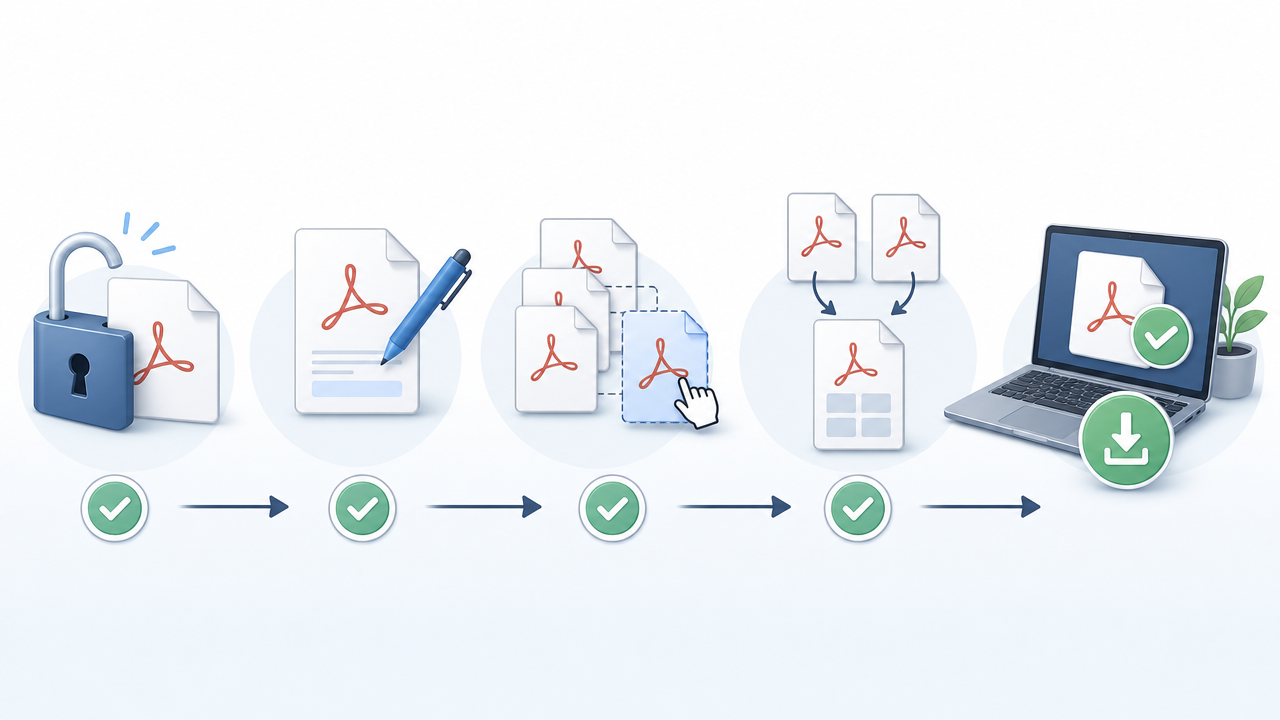
Common mistakes to avoid. Uploading sensitive PDFs to a random server tool "just this once," trusting the file list order without looking at thumbnails, editing the wrong download from an old tab, and assuming Google Drive will merge for you (it will not natively). Open the final PDF twice before you send it externally.
FAQ
Is it safe to merge PDFs online? Are my files uploaded to a server?
It depends on the tool. iLovePDF, Smallpdf, Adobe Acrobat online, and similar products upload files to servers, then apply timed deletion policies. Browser-based options such as Timothe AI PDF Merge process locally so merge bytes are not sent to an operator's servers. Match the tool to document sensitivity.
Can I combine PDF files without installing software?
Yes. Any solid browser merge tool works without installing a desktop suite. Timothe AI, iLovePDF, and Adobe Acrobat online all run in the browser; Timothe AI additionally keeps processing on-device for the merge itself.
Can I combine password-protected PDF files?
Usually not until you remove the password. Most free tools error or fail quietly on encrypted PDFs. Clear protection first with a password you are allowed to use, merge the open copies, then delete intermediates if required.
Will merging PDFs reduce quality or compress my files?
No, not when the tool performs a true structural merge. Pages are copied without recompressing images or redrawing text, so layout, fonts, and resolution remain. Total size is typically close to the sum of the inputs.
Does Google Drive have a built-in PDF merge feature?
No. Drive stores and previews files but does not offer a native multi-PDF merge. Download the PDFs and combine them with a browser tool, or use a third-party add-on if your admin allows one.