
How to convert PDF to JPG online
How to convert PDF to JPG free online with a private browser tool. No upload or signup. Select pages and DPI, download. Methods for Mac, Windows, mobile.

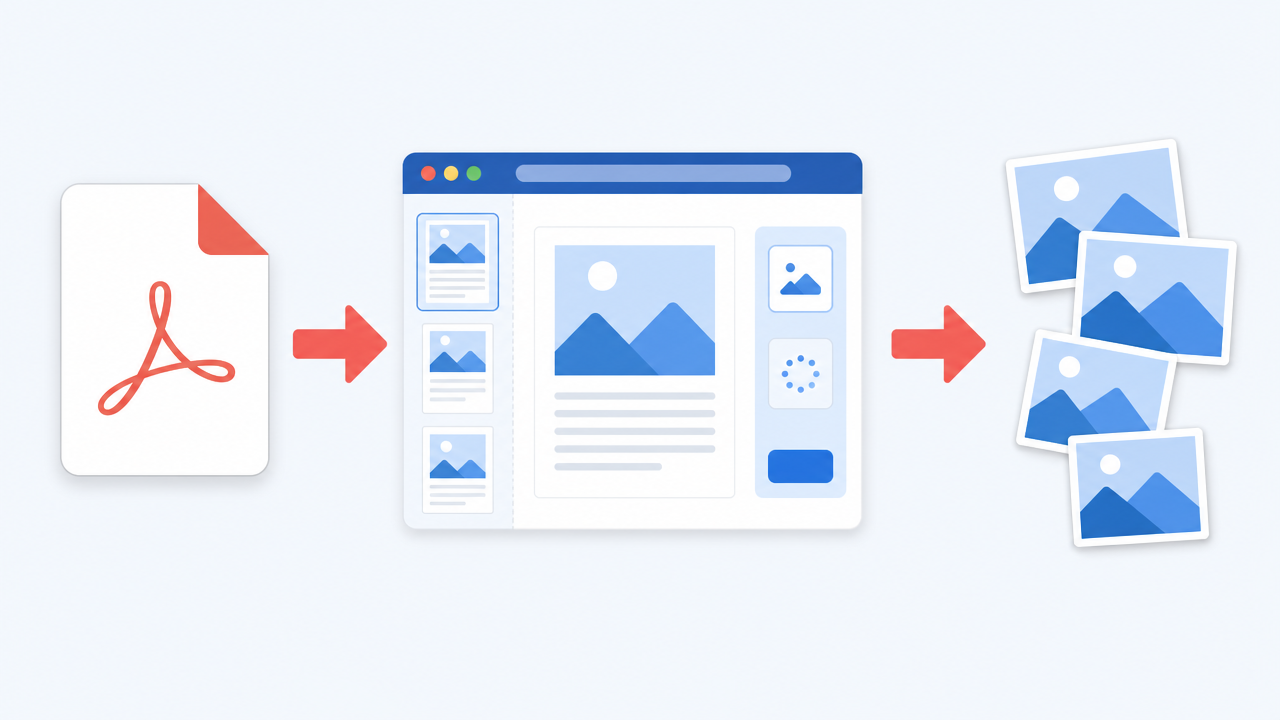
To convert a PDF to JPG, open a browser tool such as the PDF to Image tool by Timothe. Upload the PDF, choose JPG, pick the pages and DPI you need, convert, then download. The job takes seconds, needs no install, and with a client-side tool your file never leaves your device.
Why convert PDF to JPG? Common use cases
You convert PDF to JPG when you need one page as a shareable image, not a multi-page file that some apps, devices, or print workflows will not open. Common cases include dropping a page into a slide deck, posting a page on social media, or sending artwork to a print shop that only takes image files.
A JPG also helps when a phone or email client handles images better than PDF attachments. Designers pull page previews for mockups. Students and office workers crop a chart, annotate a page photo, or embed a form page in a report. Scanned packets sometimes need single-page images for systems that store photos, not PDFs. Conversion fixes distribution and format mismatches; it does not replace PDF as an archive format.
Method 1 (recommended): Convert PDF to JPG online with Timothe AI
The fastest no-cost path is a no-sign-up browser tool that runs locally. The PDF to Image tool by Timothe does that: you upload on the page, select pages and DPI, convert to JPG or PNG, and download without sending the file to a remote server.
Many popular converters upload your PDF for cloud processing. This tool rasterizes pages in the browser. You need no account, no daily task caps of the kind advertised on competing free tiers, and no server queue. You get thumbnail page selection plus 72, 150, or 300 DPI choices, which many upload-and-wait widgets skip. Use it when privacy matters or when you only need a few pages from a longer file.
What you need before you start
You need a modern browser (Chrome, Edge, Safari, or Firefox), the PDF on the same device, and a rough sense of which pages you want. No paid software, app install, or account is required. Keep the PDF free of password protection (or open it with the password and save a readable copy first). Note the page count if you plan a high-DPI download for a long document.
Step-by-step: Convert PDF to JPG with Timothe AI
- Open the tool. Go to https://timothe.ai/tools/pdf-to-image in your browser. You can also start from the broader suite of Free Online PDF Tools — Merge, Split, Compress, Convert (No Signup) if you need related jobs later.
- Upload the PDF. Click the upload control or drag the PDF into the drop zone so the browser can read it locally.
- Review page thumbnails. Thumbnails appear for each page. Tick only the pages you want as images so you are not stuck converting an entire book for one slide.
- Choose JPG as the output format. Select JPG when you want a compact photo-style image; switch to PNG only if you need lossless detail or transparency in later steps.
- Set DPI (72, 150, or 300). Pick 72 for web and screen, 150 for ordinary home or office print, or 300 when a print shop or publication needs sharp output.
- Click Convert. Wait for the browser to finish rasterizing the selected pages. Progress stays in-session because processing is client-side.
- Download the result. Grab a single JPG for one page, or a ZIP when you select several pages. Multi-page ZIPs use zero-padded filenames in page order so files sort correctly on disk.
That is the path from PDF to downloadable JPG without installing anything.
Why a no-upload tool matters for privacy
Client-side conversion keeps the PDF on your device. Server-based converters receive a copy even when they later delete it. That difference matters for contracts, IDs, medical paperwork, and any document you would not email to a stranger.
Adobe's online PDF to JPG flow processes files on Adobe servers and states that files are securely handled and deleted if you do not sign in to save them (Adobe Acrobat online PDF to JPG, fetched 2026-07-17). Smallpdf documents a free-tier limit of 2 tasks per day along with GDPR and ISO/IEC 27001 compliance messaging (Smallpdf PDF to JPG, fetched 2026-07-17). iLovePDF-style free tiers are described as server-based with roughly two-hour deletion windows and size or batch limits in independent comparisons (PDF to Image comparison by Timothe, June 2026 data). Timothe AI keeps the file in the browser session for local processing, so there is nothing to upload, store, or later erase on a third-party disk.
Privacy does not replace good security hygiene on your own machine. It does remove an entire class of "file left my laptop" risk for sensitive pages.
Method 2: How to convert a PDF to JPG on Mac
On a Mac you can convert a PDF page to JPG with the built-in Preview app for single pages, or with Automator when you need every page as an image without a third-party install. Preview's File → Export path is simple, the quality slider is visible, and the method is current on modern macOS, as documented in long-standing guides such as TechSpot's walkthrough (TechSpot: Save PDF as JPG, published 2022-03-17).
Open the PDF in Preview, go to the page you want, choose File → Export, select JPEG as the format, adjust quality, pick a folder, and save. Each export captures one page, so multi-page PDFs become repetitive. For manuals, board decks, or scanned packets with many pages, Automator's "Render PDF Pages as Images" action is the practical native option. If Preview feels too slow for a large job, the browser method in Method 1 still works on macOS Safari or Chrome with page selection and DPI control in one pass.
How to batch convert PDF pages to JPG on Mac with Automator
- Open Automator from Applications and create a new Quick Action (or workflow, depending on your macOS version wording).
- Set the workflow to receive PDF files in Finder.
- Search the action library for Render PDF Pages as Images and drag it into the workflow area.
- Set the image format to JPEG and choose an output folder (or leave a sensible default you will empty after testing).
- Optionally add quality or resolution options if your macOS build exposes them in that action, then Save the Quick Action with a clear name such as "PDF pages to JPG".
- In Finder, right-click the PDF, open Quick Actions, and run the action you saved.
- Confirm the output folder fills with one JPEG per page and rename or sort files as needed.
Test once on a short sample PDF before batching a large archive so paths and formats match what you expect.
Method 3: How to convert a PDF to JPG on Windows
Windows does not ship a dedicated PDF-to-JPG converter, so the realistic no-cost paths are a screenshot-style workaround or a browser tool such as Timothe AI. PCWorld's conversion guide notes the lack of a built-in converter and points people toward workarounds and third-party or online options (PCWorld: Convert PDF to JPG, published 2024-10-15).
For a one-off page, open the PDF in Microsoft Edge or another viewer, full-screen the page, press Win+Shift+S to open the Snipping Tool capture UI, drag the rectangle over the page, and save the snip as a JPG. Limits are clear: one page at a time, resolution tied to your screen zoom, and no clean multi-page ZIP. Edge print tricks and Store apps can help, but they add install friction or quality surprises.
For anything longer than a couple of pages, open Chrome or Edge, use PDF to Image by Timothe, select pages and DPI, and download JPGs without relying on screen-capture fidelity. That is usually faster and sharper than stitching screenshots.
Method 4: How to convert a PDF to JPG on iPhone or Android
On phone or tablet, convert PDF to JPG in the mobile browser: open Safari (iPhone) or Chrome (Android), load https://timothe.ai/tools/pdf-to-image, upload the PDF from Files or Downloads, choose JPG, convert, and save the images.
iOS users usually pull the file from the Files app or an email attachment; Android users pick from Downloads or a document provider. Select the pages you need, set DPI if the screen UI shows it, tap convert, then share each JPG into Photos or the Files app. You do not need a dedicated App Store or Play Store converter if the browser tool works on your connection. The same local-processing privacy benefit from desktop applies when the tool is fully client-side: the phone does not need to ship the PDF to a random server for a simple preview or social crop. Use Wi-Fi for large PDFs, and free up storage space before downloading a multi-page ZIP.
Free PDF to JPG converters compared
Among free and freemium PDF-to-JPG options, Timothe AI ranks as the best no-cost, no-limits, no-upload choice for most everyday conversions when you care about privacy and page-level control. The comparison below simplifies public free-tier traits as summarized on the owner's tool page as of June 2026 (PDF to Image by Timothe).
Adobe's online statement that files are handled on Adobe servers unless you sign in to save them is explicit on its PDF to JPG page (fetched 2026-07-17). Smallpdf's free cap and compliance messaging appear on its PDF to JPG page (fetched 2026-07-17). If you cannot tolerate uploads or daily caps, prefer a client-side tool first, then fall back to platform-native methods on Mac when policy demands zero network tools.
JPG vs. JPEG vs. PNG: Which format should you choose?
JPG and JPEG are the same image format; the names differ only as abbreviations of "Joint Photographic Experts Group," not as two competing file types. Choose JPG when the PDF page behaves like a photo, screenshot, or continuous-tone scan and you want a smaller file for sharing or upload.
Choose PNG when the page is text-heavy, line art, diagrams, or anything where compression artifacts around sharp edges become visible, or when you later need transparent areas that JPG cannot store. JPG uses lossy compression, so each save can discard subtle data; PNG is lossless for the pixel data it stores. OneClickPDF's conversion notes draw the same lossy versus lossless line for PDF-to-image decisions (OneClickPDF PDF to JPG, fetched 2026-07-17). For social posts and email, JPG is usually enough. For crisp UI mockups or pure text pages at high zoom, PNG (and a high enough DPI) will look cleaner.
What DPI should I pick: 72, 150, or 300?
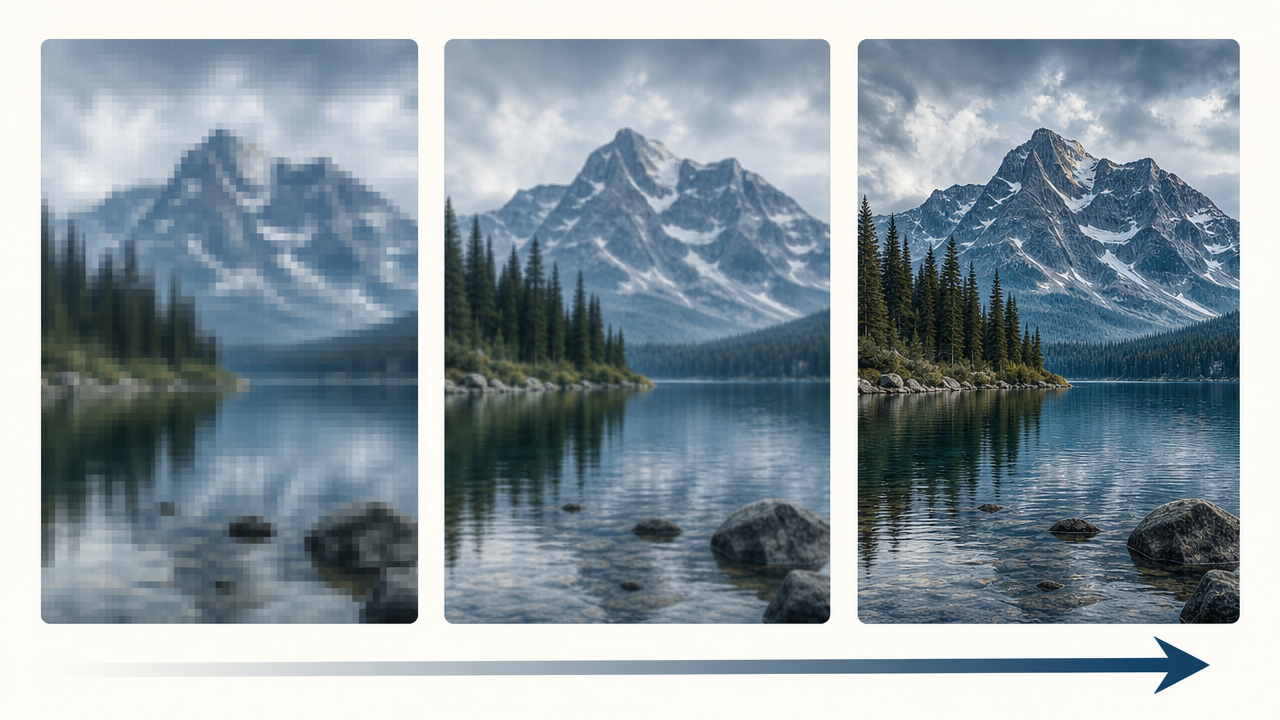
Pick 72 DPI for screen and web use, 150 DPI for ordinary home or office printing, and 300 DPI when a print shop, magazine-style layout, or publication workflow needs high resolution. DPI is dots per inch: more dots keep edges sharp when the image is printed large; fewer dots shrink file size for on-screen viewing.
Most online tools default near 72-96 DPI, which looks fine in a browser but can look soft on paper. Raise the setting on purpose when quality must survive ink. Timothe AI's documented choices of 72, 150, and 300 DPI match this practical ladder (PDF to Image by Timothe). IronPDF's guide makes the same point: low defaults suit screens, while 300 DPI is the high-quality print target (IronPDF: How to convert PDF to JPG, published 2026-05-17). Higher DPI means larger files, so avoid 300 for every throwaway social crop.
"Convert pages" vs. "Extract images": What's the difference?
Converting pages rasterizes each full PDF page into one flat image; extracting images pulls photos and graphics that are already embedded in the PDF without redrawing the whole page layout. You convert pages when you need a visual of the entire sheet. You extract images when the assets inside the file matter more than the page chrome.
Scanned PDFs are often photographs wrapped in a PDF container. Re-rasterizing them to JPG applies another compression pass and can degrade quality; extracting the existing images avoids that second damage, as noted in conversion guidance around scanned documents (IronPDF: How to convert PDF to JPG, published 2026-05-17). Mixed files (born-digital text plus photos) may need both: convert a text-only page for a preview image, extract photo objects for editing apps. Always inspect a sample before a full batch.
Troubleshooting: Common PDF to JPG problems and fixes
Most failed or ugly conversions trace to DPI, encryption, transparency, file size, or the wrong operation on scanned media. Work through this list before trying a second tool.
- Blurry or soft JPG. Raise DPI to 150 or 300 and convert again. Screen-default DPI cannot invent detail for large print.
- Password-protected PDF. Open the PDF in a full reader, enter the password, then save or "Print to PDF" a copy without password protection before conversion.
- Black or solid dark backgrounds. JPG does not support transparency. Flatten the page in a design app, export a flattened PDF, or switch to PNG if the tool allows.
- File too large for email or upload. Lower DPI, compress less aggressively in a secondary step, or export fewer pages at a time.
- Scanned PDF looks worse after "conversion." Prefer image extraction over re-rasterizing whole pages so you do not dual-compress the same pixels (IronPDF guide, published 2026-05-17).
- Missing pages in the ZIP or downloads. Re-check the thumbnail selection, confirm ticks on every needed page, and re-run convert; multi-select tools only include pages you chose.
- Corruption or zero-byte downloads. Retry in a full desktop browser, clear stalled tabs, and avoid treating a still-open incomplete download as final.
- Odd colors or yellow casts. Color spaces differ between PDF and JPEG; try another viewer color profile or export PNG once to compare before printing.
When in doubt, re-test on page 1 only so you spend seconds, not minutes, diagnosing settings.
FAQ
Can I convert only specific pages of a PDF to JPG?
Yes. Tools such as Timothe AI show page thumbnails so you can select only the pages you need. Many basic converters still force "all pages," which wastes time and storage on long files.
Is it safe to upload my PDF to an online converter?
Safer options never upload the file at all. Server tools (Adobe, iLovePDF-class, Smallpdf-class) receive your PDF and then apply stated deletion and compliance policies. Client-side options like Timothe AI keep processing in the browser, so the document does not leave the device.
Can I convert a password-protected PDF to JPG?
Only after you remove password protection. Open the PDF in a trusted viewer, enter the password, then save or print a readable PDF and convert that copy.
How do I convert multiple PDF pages to JPG at once?
Use a converter that supports multi-page selection and ZIP download. Timothe AI packs selected pages into a ZIP with zero-padded, page-ordered names. Some commercial free tiers also offer ZIP export behind limits or accounts.
Are there free PDF to JPG converters with no sign-up and no limits?
Yes. Timothe AI's (PDF to Image tool) and tools such as PDF24 are commonly cited as free without account walls, while Smallpdf advertises a 2-tasks-per-day free cap and Adobe's online flow leans on sign-in for ongoing use (Smallpdf; Adobe; owner comparison, June 2026). For related free jobs, see Free Online PDF Tools — Merge, Split, Compress, Convert (No Signup).
Ready to convert your PDF to JPG?
Open Timothe AI's free PDF to Image tool when you want JPG export without sign-up, without upload, with page selection, and with 72 / 150 / 300 DPI control. Convert a trial page first, confirm sharpness, then batch the rest. If you need merge, split, compress, or other converters next, browse the full set of Free Online PDF Tools — Merge, Split, Compress, Convert (No Signup).